Two agents, one shared project; you direct.

A practical guide to directing Claude Code and Codex together in one shared, traceable workspace.

Back to conflab.ai

Part 1 - Overview

What ConflabCode is

ConflabCode puts two AI coding agents, Claude Code and Codex, on the same project at the same time, with you directing. Here is what that means in practice:

Two agents in the same conversation, not two sessions passing notes. Claude and Codex sit in the room together, trained differently, so they catch different mistakes the way a single agent working alone would not. Talk to both at once, or target one directly by clicking its window, naming it by name in your message, or locking a target with a right click. Whatever one agent says, the other sees on the next round, clearly marked as context to be aware of, not an instruction to follow.

Context that manages itself. Normally, you watch context usage and save it yourself before you hit the wall. On ConflabCode, nobody watches the gauge. Set a threshold per model, a lower percentage for a huge context window where context rot and higher cost creep in, a higher percentage for a smaller one, and when that threshold is hit, ConflabCode promotes a fresh agent instance and hands off the history invisibly. You stop thinking about context entirely.

Flexible enough to match how you actually work. Say "move this button seven pixels right" and the lead just does it, no ceremony required, with review always one click away. For a handful of loose objectives, free form mode runs them through design review, implementation, and verification automatically, with a single click.

Real cross-review, enforced by the stages themselves. For even more structure, brainstorm, design, implementation, verification, every stage lets you assign a lead and a reviewer, and you can swap roles at each stage, so Claude designs and Codex builds, then Claude reviews the code Codex just wrote. The stage itself makes sure of it.

Provenance that survives every handoff. Design items trace back to the brainstorm notes and rounds that produced them. Implementation traces back to design. Verification checks against all of it. At every stage, the reviewer isn't just checking whether the agent did what it said it would do, it's checking against your original intent, with an actual link back to where that intent came from. The more detail you give it, the sharper the result, thin notes still get you thin results, and the structure is there for you to take advantage of.

One click to reach consensus. It orients both agents on the same page, each catching what the other missed, and merges their input into a consolidated opinion you can act on. Neither agent holds the whole picture alone, so pooling what each one sees, even from the same context, catches more than either would catch working solo.

Built to run more than one pair of agents at once. Run up to ten ConflabCode instances at the same time, more than enough for any situation. Additionally, ConflabCode provides shiny new tools to replace the agents' original ones. Every mistake an agent makes normally costs a round trip to the provider, and that adds up fast. Each trip re-sends a full copy of context, costing time and money. ConflabCode's tools catch and retry the errors, self-correcting until it actually works. Things like quoting mistakes, wrong paths, and edits that need another pass all get fixed automatically.

Behavior Policy and Rules you control. Behavior Policy describes what it means to be the lead agent or the reviewer, and tells the agent what is expected in that role for each stage, and it comes with sensible presets already in place. A global set of Rules ships with the product, edit them or add your own, project Rules are entirely up to you to define, they shape how the agents work with you, your own preferences for how they respond and interact. Edit either carefully, your changes replace the defaults rather than layering on top, so a careless edit can change how a stage functions. A full reset always brings you back to the defaults.

License, disclaimer, and compatibility. ConflabCode is free to use, copy, modify, and distribute under the MIT License. The packaged application also includes the source code it runs from, so the source is available inside the installed app.

The first-launch disclaimer still applies: ConflabCode is an engineering collaboration tool for AI agents, not a guarantee of useful or correct results. You are responsible for the commands you approve, the code you apply, the files you change, and the provider tools you choose to use with it.

ConflabCode does not block provider skills, plugins, or other extensions. Compatibility is not guaranteed, though: anything that changes an agent's prompts, tools, permissions, files, or startup environment can interfere with ConflabCode's coordination layer.

In practice. What you see: the opening Overview explains the shared workspace, the two-agent model, and the next required setup step. Why it matters: it gives you a safe orientation point before a task or provider session is running.
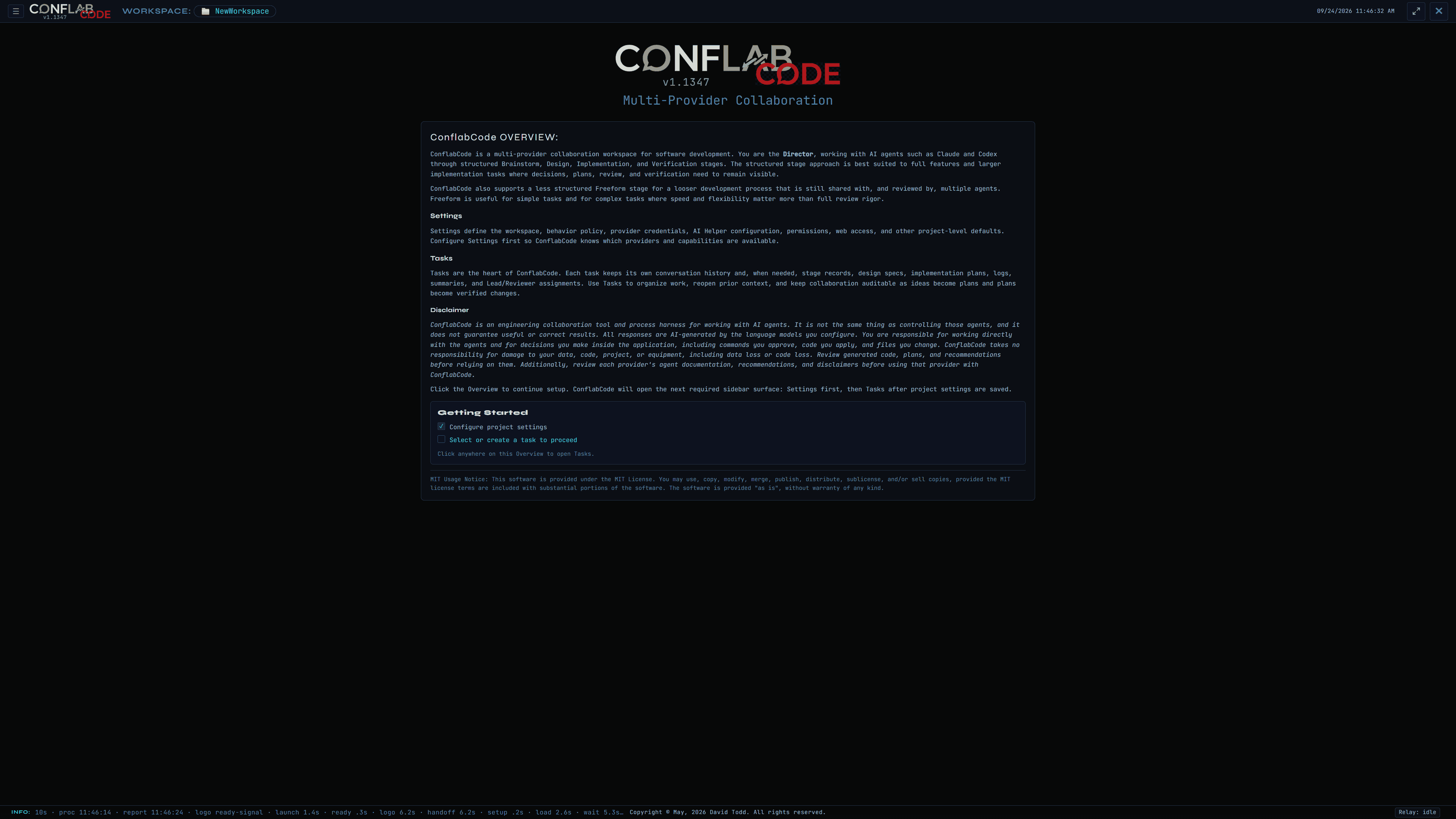
ConflabCode Overview screen with workspace guidance, settings and tasks explanations, a disclaimer, and a Getting Started checklist
The Overview is the application’s starting map: configure the workspace first, then select or create a task. Select the image to inspect the complete interface.

The mental model

A workspace is a folder on disk. Everything ConflabCode knows about a project, every task, every conversation, every stage, lives under that one folder.

A workspace holds tasks, and a task is the unit of work. It remembers everything: the full conversation, the round by round history, which objectives are done, which stage it's in. Open a task, close it, come back later, and it picks up exactly where you left it.

Most work can begin as a conversation, and ConflabCode helps you preserve the useful result as structured artifacts when you decide it's ready.

Inside a task, work happens one of two ways. Loosely, in Freeform, where you just talk and things get done. Or through four named stages in order: Brainstorm, Design, Implementation, Verification.

Two agents work every task, always. Each one is either Claude Code or Codex, and depending on the stage, either one can be Lead or Reviewer. The roles swap. The agents don't.

You are the Director. That's the human in the room, and in every task, that's you. You can talk to one agent, talk to both at once, or, where the current stage supports it, let an AI Director draft and send on its own.

Whatever one agent does, the other sees it on its next turn. Not as an instruction to follow, just as context to be aware of. That's the mechanical heart of the whole tool: same conversation, not two sessions passing notes.

What to expect from agents

Before you trust anything else in this guide, it's worth being honest about what ConflabCode changes and what it doesn't.

Two agents catching each other's mistakes lowers the error rate. It doesn't zero it out. Review and Incorporate are real gates, but in Freeform they're gates you can decline to use, and even inside a structured stage, a Reviewer's approval is a judgment call, not a guarantee.

You still have to read what an agent claims it did. The tool gives you evidence, the record, the tool log, the diff, instead of asking you to take an agent's word for it. Somebody still has to look at the evidence. That somebody is you.

Structure adds dependability. It doesn't add control. If you tell an agent to do something destructive, the stage machinery doesn't stop it. The permission dialogs are what stand between you and that, and only for the operations they actually cover.

One working rule worth stating plainly. Review and Incorporate are offers, not requirements. If the work already looks right, skip Review and move on. If a Reviewer flags something not worth acting on, don't Incorporate it. The buttons make your judgment easier to act on. They are not a substitute for it.

Platforms and agents

ConflabCode is an Electron desktop app validated for routine use on Windows and macOS. Packaging artifacts may exist for other platforms, but this guide does not present Linux as a validated daily-use platform.

Two agent providers are supported and tested today: Claude Code and Codex, each through its own native runtime integration. Put the same provider in both seats, and ConflabCode warns you rather than blocking you, in case that's actually what you want.

A task needs two active provider seats to run at all. Unlike M-PACT, where a single agent is an optional, lighter weight way to work, ConflabCode isn't built around a one agent shape. Two agents is the whole idea.


Back to contents

Part 2 - Getting set up

Getting set up is three separate things: pick a workspace, tell ConflabCode which providers you're using, and create your first task. None of it takes long.

Before you begin: provider CLIs and accounts. ConflabCode runs the Claude Code and Codex command-line tools, or CLIs, on your computer. A CLI is the local coding-agent program that ConflabCode launches for you; you do not need to work in a terminal yourself.

ConflabCode must detect both a Claude Code CLI and a Codex CLI. It may find a standalone installation or a compatible CLI bundled with a supported editor extension.

Each provider also requires credentials. Choose one method for each provider:

  • Provider login: Authorize with a provider account whose plan includes access to that coding agent. ConflabCode opens the provider's sign-in flow when authorization is needed.
  • API key: Create a key in the provider account and make sure API usage or billing is enabled.

You do not need both credential methods for the same provider. Installing a CLI does not create a provider account or grant subscription or API access. Settings will identify anything still missing and provide links for installation, CLI sign-in, and account or API-key management.

Launching ConflabCode and picking a workspace

The first time you launch ConflabCode, you'll see a splash screen, then a folder picker, unless you launched with a specific path or a recent workspace already in hand, in which case ConflabCode drops you straight into it.

The folder picker gives you breadcrumbs, root shortcuts, Go Up and Home buttons, a toggle for hidden files, and a Recent row along the bottom showing your last several workspaces.

Each Recent entry shows, in parentheses, whether that workspace is already open somewhere else, and in which task, or "None" if it's open with no task picked yet. Click a Recent entry that's open in another window, and ConflabCode asks first: switch this window to it, open a brand new window, or cancel.

Opening a brand new folder as a workspace initializes it right there. The first Save Settings creates the workspace's .ConflabCode folder. Save stays disabled until ConflabCode has found both the Claude Code and Codex CLIs and an AI Helper is selected; a red note under the button lists whatever is still missing.

In practice. What you do: browse to a project folder, choose a recent workspace, or start a new one. What you see: open workspaces carry their live task state in the Recent row. Result: the chosen folder becomes the boundary for task history and workspace settings.
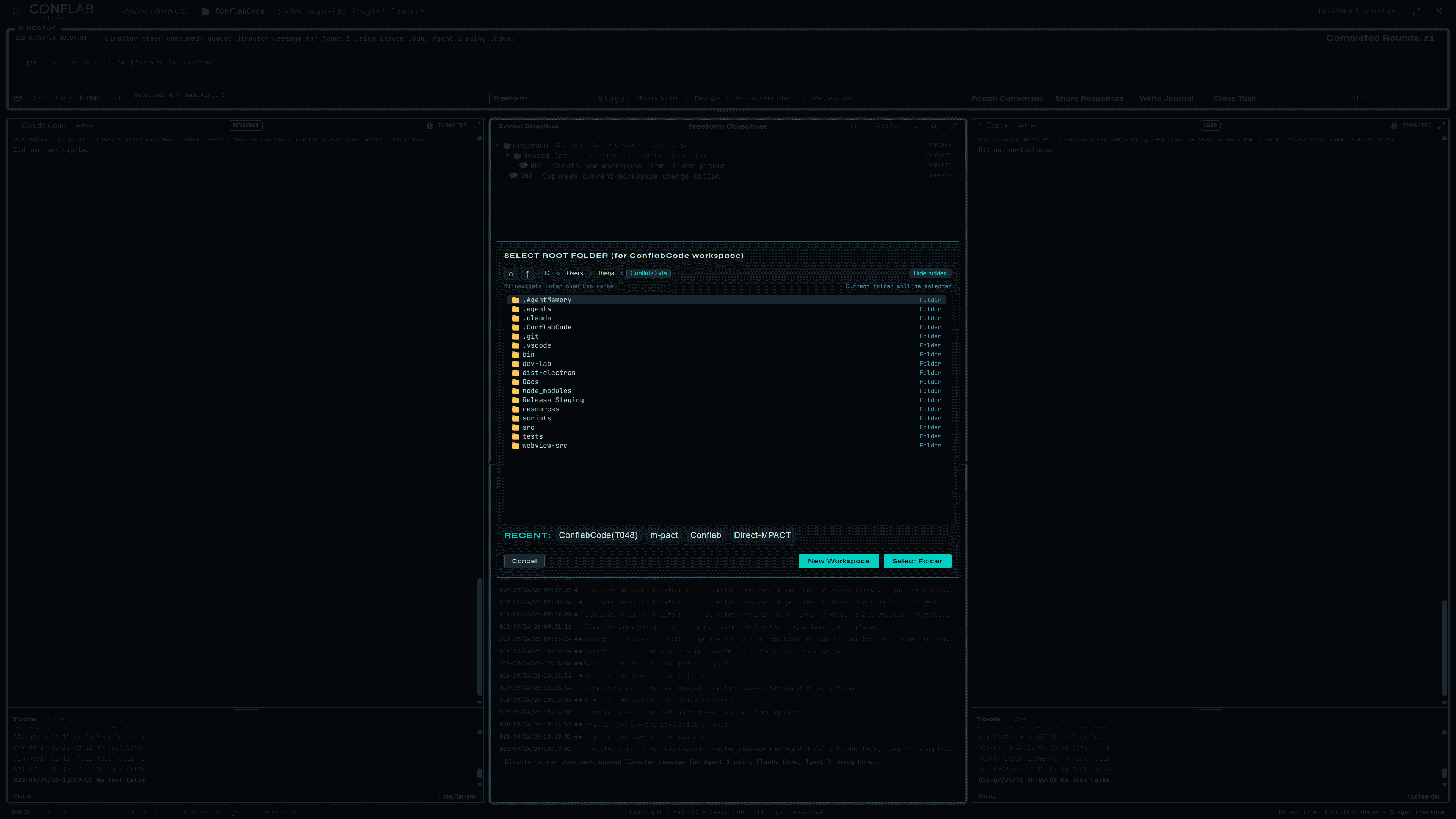
ConflabCode workspace folder picker showing breadcrumbs, folders, recent workspaces, New Workspace, and Select Folder controls
The workspace picker combines normal folder navigation with live Recent entries, so you can see whether another window already has a workspace or task open. Select the image to inspect the complete interface.

Provider credentials and the essentials

In Settings, Provider Credentials handles both agents. ConflabCode auto detects each agent's CLI path, with a manual override if it guesses wrong. Each provider gets its own subscription versus API key toggle, and a Launch Login button for the ones that need it.

Separately, AI Helper has its own provider, model, effort, and speed settings. This isn't a third agent you talk to. It's what powers summaries, rule checks, and a handful of other background jobs behind the scenes.

Most of the rest of Settings is routine enough that it doesn't need its own teaching space here. Part 10 covers it as a reference list.

In practice. What you do: confirm the detected CLI for each provider, choose subscription login or API-key mode, and configure the AI Helper separately. What you see: provider choices and helper settings stay in one sidebar but serve different jobs. Result: both agent seats and the background helper are ready without treating the helper as a third conversational agent.
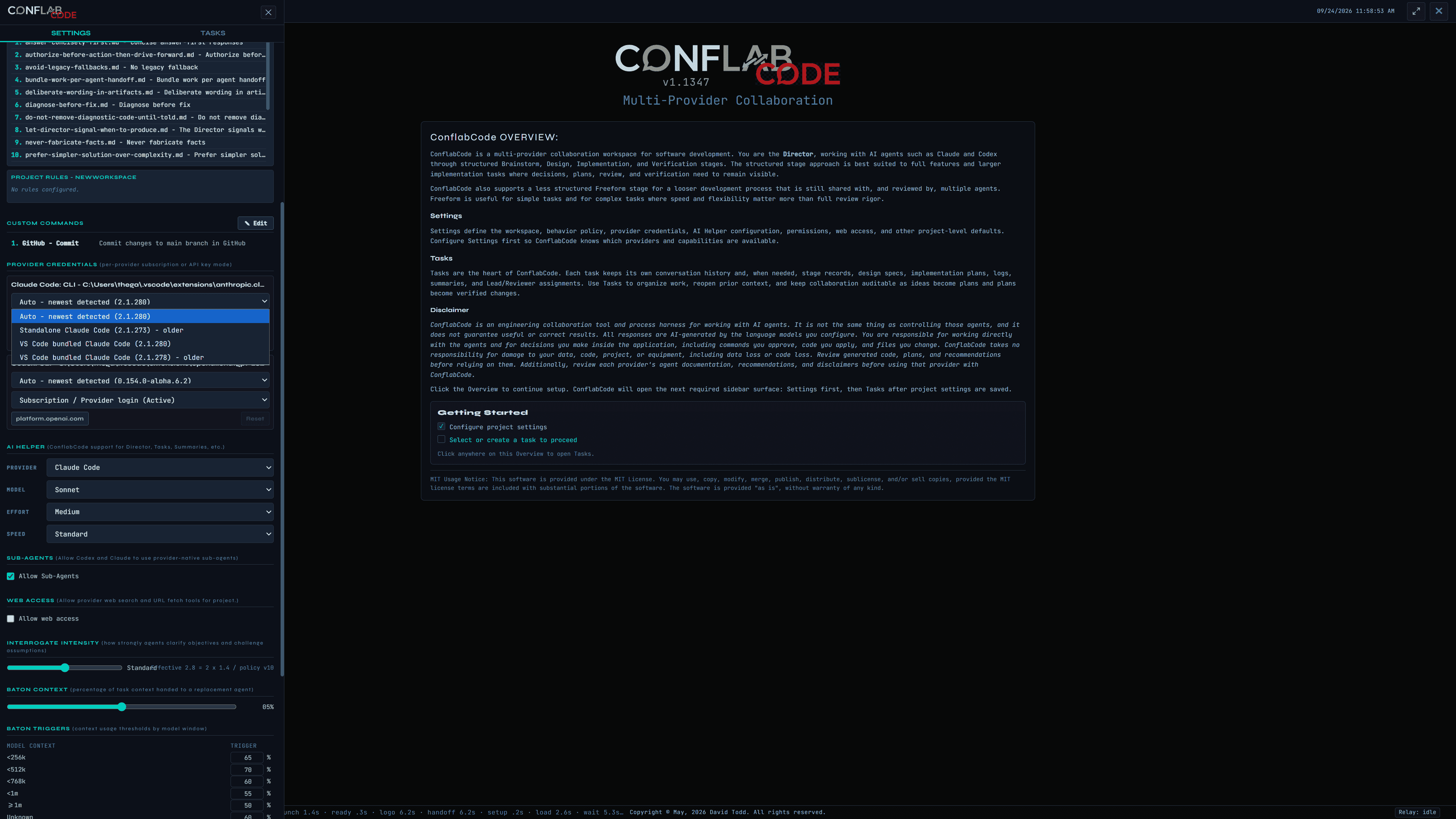
ConflabCode Settings sidebar showing provider credentials, a detected Claude Code runtime menu, Codex credentials, AI Helper controls, and context settings
Provider Credentials selects each native agent runtime and authentication mode. The AI Helper settings below are independent background support settings. Select the image to inspect the complete interface.

Creating your first task

Right click the Tasks root for two options: Add Category or Add Task. Categories are optional folders. Tasks can live at the root or inside one, and you can drag them in and out later.

The Task Editor asks for a name and a description of the objective. Save commits the task without leaving the editor. Go launches the actual working view. A trash can deletes the task, and a lock icon closes it.

A brand new task defaults to Human Director, Freeform stage, free form mode, and two agent windows on your workspace's default providers. You don't have to configure anything to get moving. Name it, describe it, hit Go.


In practice. What you do: give the task a durable name and objective, then choose Save to keep editing or Go to enter the working view. What you see: the task number and open/closed control stay with the editor. Result: the task becomes the persistent container for the conversation and stage records.
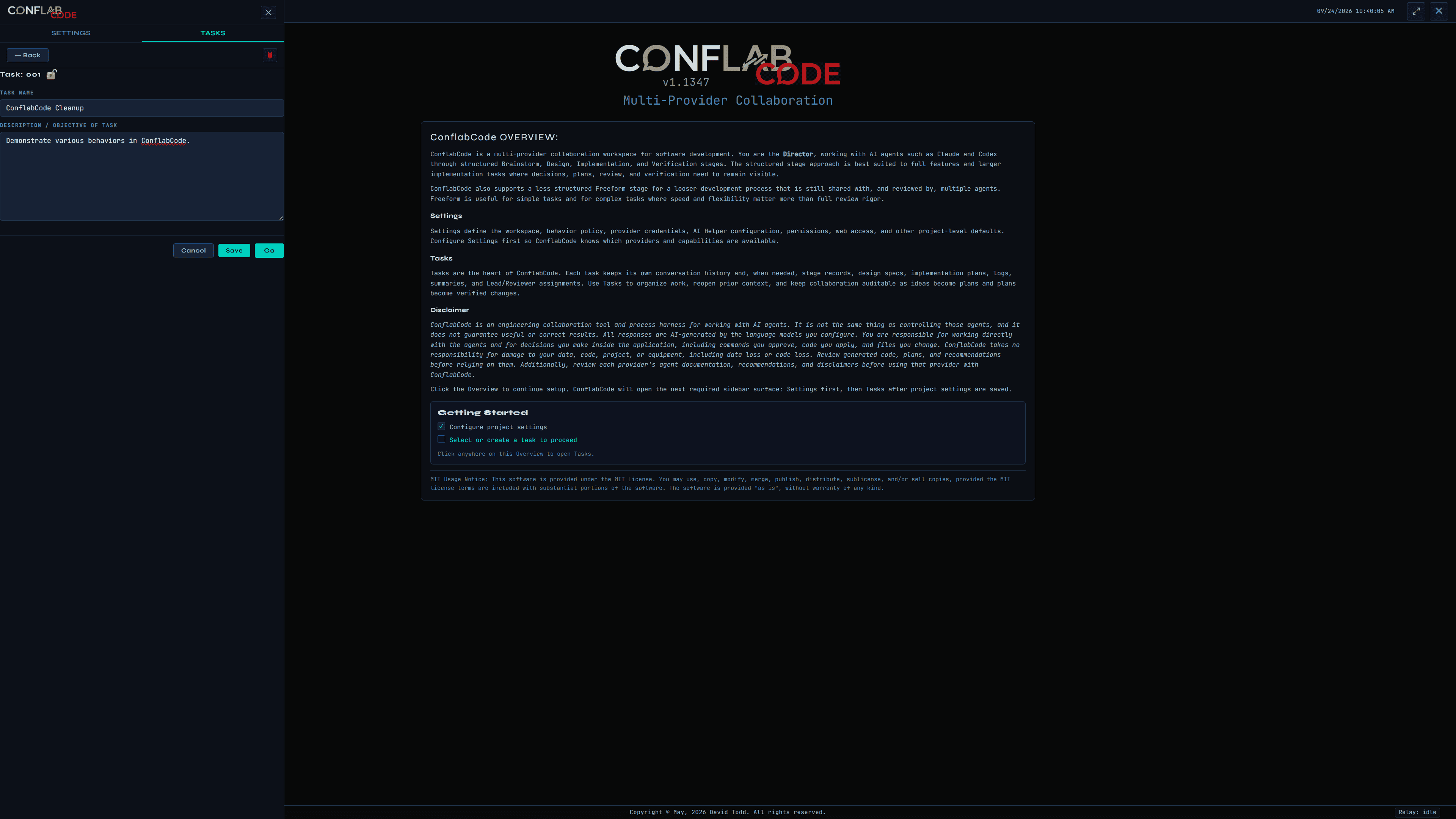
ConflabCode Task Editor with a task name, objective, open lock state, and Cancel, Save, and Go controls
The Task Editor is intentionally small: name the work, state the objective, and choose Go when you are ready to start. Select the image to inspect the complete interface.
Back to contents

Part 3 - Two agents in the same conversation, not two sessions passing notes

This is the core interaction model everything else in this guide sits on top of. It's worth understanding well before the rest of the guide starts assuming you know it.

The Director panel and composer

Across the top of a task's working view sits the Director panel: your last message, an input field, a paperclip for attachments, a Human and AI Director toggle, and a counter showing how many objectives are selected versus remaining.

Enter sends your message. Shift+Enter starts a new line without sending.

Human Director means you're the one typing. AI Director means ConflabCode drafts and sends on its own. That toggle only becomes selectable when the current stage or objective is something an AI Director is actually equipped to drive. Otherwise it stays inactive, so you can't accidentally hand control to it somewhere it doesn't know what to do.

Turning conversation into durable work

Conversation creates the source material. Capture turns the useful result into durable objectives, notes, or items. Import then carries artifacts you already created into the next stage: discuss, capture, import.

There are three complementary ways to capture that work. In Freeform, click Extract Objectives; in Brainstorm, click Extract Notes. Either shortcut asks the Lead to derive artifacts from recent conversation rounds that have not already been processed. You can instead ask an agent in plain language to create or revise however many artifacts are needed, giving you conversational control over selection, scope, and granularity. Or use Add and manual editing when you want precise, direct entry.

To authorize an agent to create a durable artifact, use an explicit action word such as create, write, or build, and name the artifact you want. Discussion, suggestion, or agreement alone is intentionally not authorization to create one.

What you might say. These are examples of ordinary language, not special commands that must be repeated word for word.

“Create as many Freeform objectives as needed to capture what we just discussed.”

“Write as many Brainstorm notes as needed to preserve the decisions and open questions from this discussion.”

“Build a Design item that covers what we just discussed.”

Extract is a repeatable shortcut, not a replacement for the conversation that gives it substance. Import is a different operation: it moves existing artifacts forward rather than extracting new material from the discussion. When an Import button is available, use it to carry the stage forward; it is the preferred, more thorough way to bring the complete set of existing artifacts into the next stage.

You decide when a discussion is ready to preserve. Agreement between the agents can help that judgment, but formal consensus is not required.

Targeting an agent

By default, both agents start targeted and locked. Most of the time, just say or type your message and press Enter; both agents receive it.

When you want only one agent to handle a particular message, name that agent within the first three words by agent name, provider, slot number, or role, Lead or Reviewer. A JavaScript routing helper checks those opening words before dispatch; this is deterministic routing, not an AI interpreting the message. That message routes to the named agent without changing the locked both-agents setting. You can give the agents different instructions this way without clicking either pane.

You can also change the persistent routing mechanically. Click one agent's pane to target just that agent, double-click to target both, or right-click to lock the current target so it stays set across messages. A locked, targeted agent shows a green TARGETED label with a lock icon, so you can see at a glance who's listening.

In practice. What you do: leave both agents targeted and locked, talk to both normally, and name one agent only when a message is specifically for that agent. What you see: the TARGETED labels continue to show the persistent routing state even when your words override it for one message. Result: the conversation naturally includes both agents, while an occasional instruction can go to just one without changing the setup.
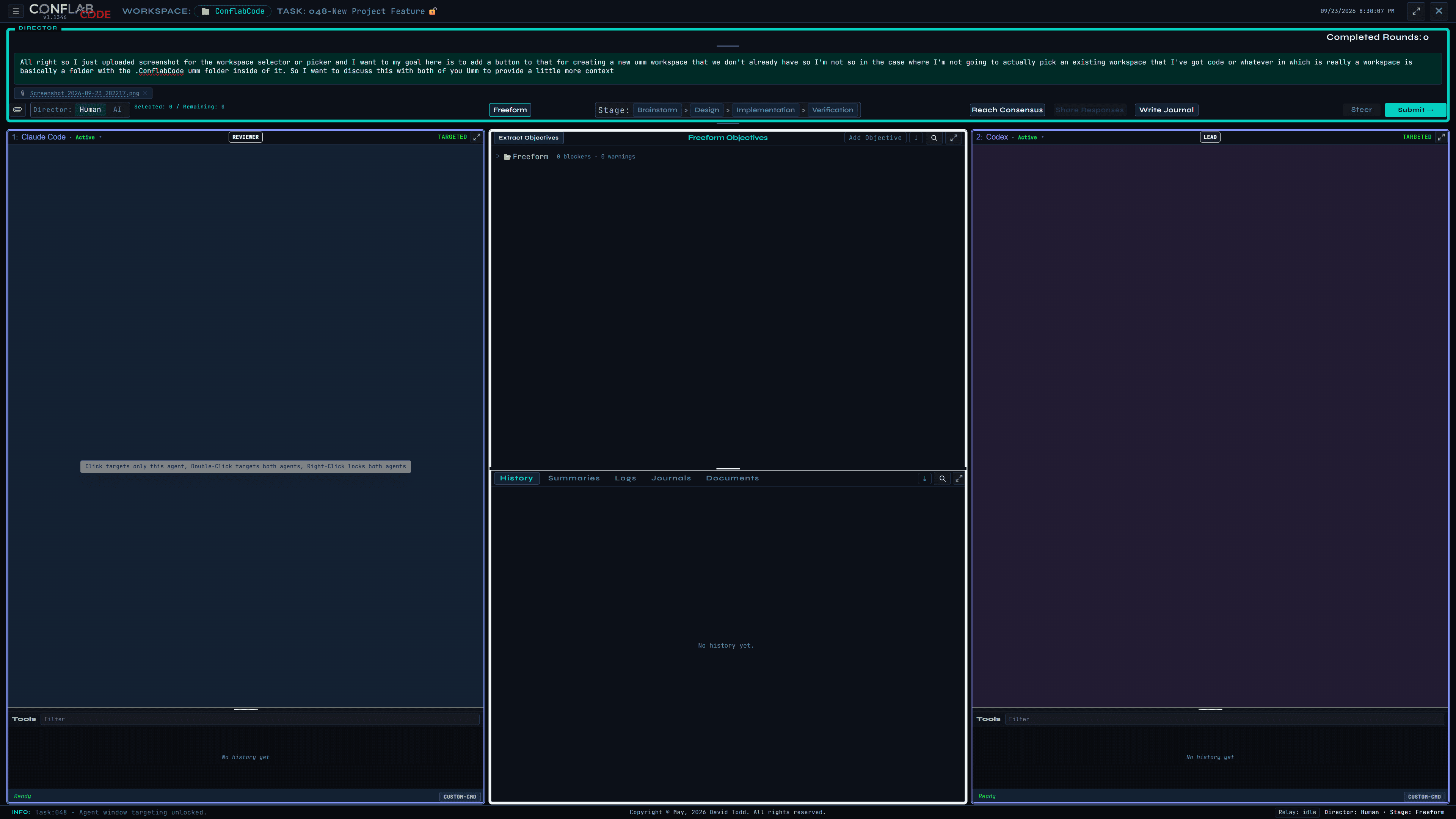
ConflabCode task view with both agent panes targeted, a targeting gesture tooltip, and a single closed-task padlock beside the task name
Targeting is visible at the top of each agent pane. Locking keeps that route in place across messages instead of resetting it after the round. Select the image to inspect the complete interface.

What each agent sees of the other

Whatever one agent says or does, the other sees it on its next round. Not as an instruction to follow, but as context to be aware of, clearly marked as such.

This is the mechanical difference between ConflabCode and two separate chat sessions pointed at the same code. Say something in one agent's window in a plain chat tool, and the other agent has no idea it happened unless you copy it over yourself. Here, it's automatic.

Steer and Interrupt

Outside AI Director mode, Submit queues Director Input for the selected busy agents. When any selected agent is busy, Steer becomes available as the more immediate option.

Clicking Steer opens a confirmation naming the affected agents and injects the new instruction into work already in progress. If both selected agents are busy, the dialog can steer both. If one has completed and the other is still busy, it can steer the busy agent and queue the completed one; queuing both remains available.

The red Stop or Interrupt control is the blunter option: instead of steering or queuing the round, it stops active work outright.

When an agent stalls

If an agent goes idle mid turn past a timeout, a stalled turn watchdog fires. It allows one automatic continue on its own, and if that doesn't resolve things, it asks you directly: continue, wait, or cancel. Part 12 has the fuller troubleshooting picture.


Back to contents

Part 4 - Tasks

Tasks are foundational the way they are in M-PACT. This Part covers the mechanics: organizing them, their lifecycle, and finding your way back to one.

Organizing tasks

Categories are folders in the task tree. Add one by right clicking, and drag tasks in and out of them freely. Sort by number or by name.

A locked padlock icon marks a closed task. It's a soft signal, a "you probably don't need to reopen this" note to yourself, not an enforced block. Nothing stops you from reopening a locked task if you need to.

In practice. What you see: categories can nest, tasks can stay at the root, and closed tasks are dimmed with a padlock. Why it matters: the icon and dimming communicate lifecycle state without preventing you from reopening the work.
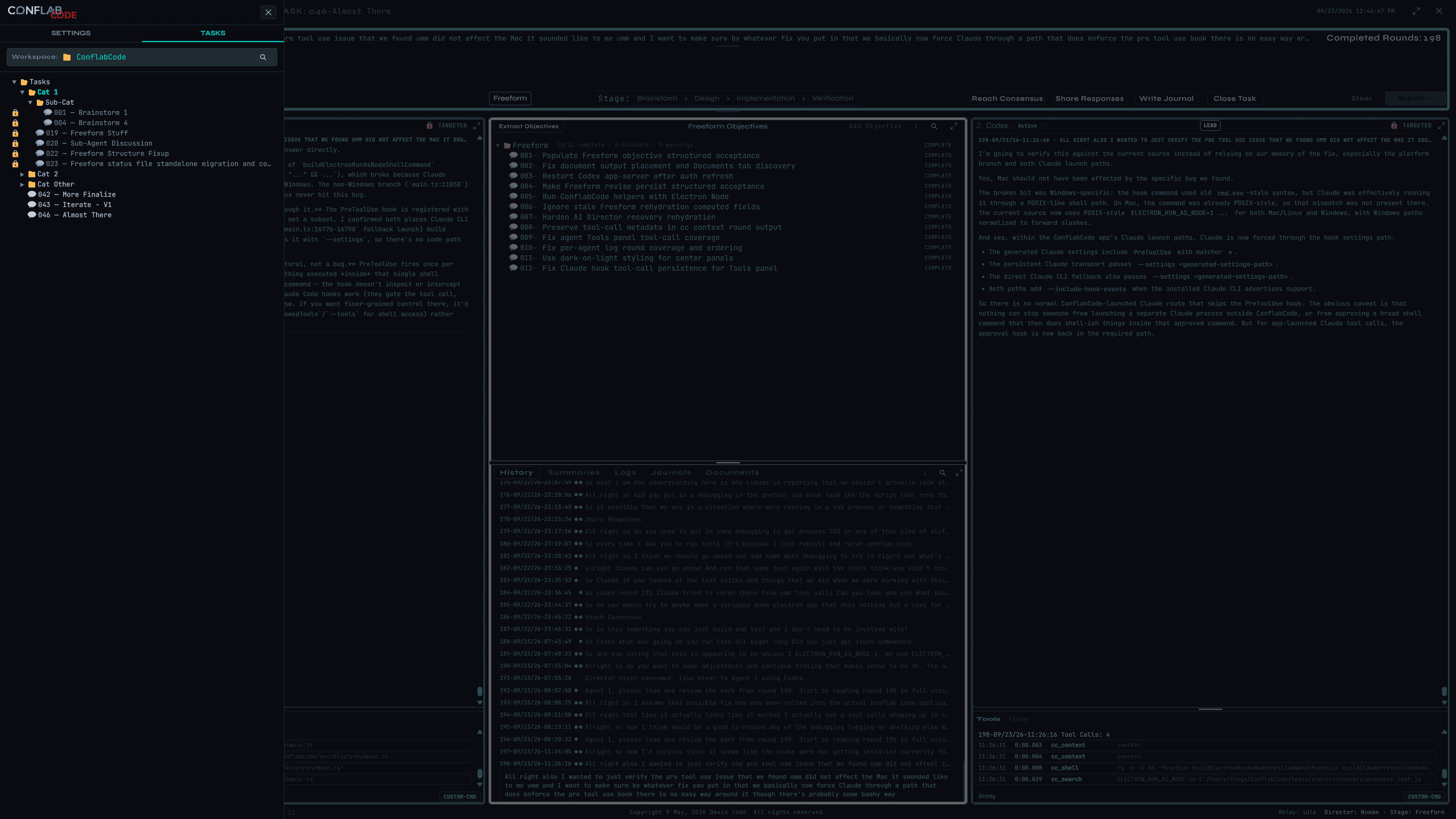
ConflabCode Tasks sidebar with nested categories, root-level tasks, and closed tasks marked with padlocks
The task tree can mix nested categories and loose tasks. A padlock marks a closed task; the speech-bubble icon is shared by tasks generally. Select the image to inspect the complete interface.

The task lifecycle

A single click opens the Task Editor. Go resumes exactly where the task left off: the full conversation, the round count, and which objectives are done, all intact.

Close Task is available from the lock control beside the focused task name and from the top-level Close Task control. Locked means closed. Clicking the locked control later reopens the task.

Closing runs a verification checkpoint, packages loose or unzipped task assets into an archive, and releases the native agent sessions behind the task.

Reopening surfaces whatever was still open when it closed, but it doesn't put any of it back into play automatically. The first thing you say after reopening should identify what's active again. Reopened tasks remain flexible: you can return to Brainstorm or another stage and add Freeform objectives, design items, implementation items, or other new work as the project evolves.

A task already open in another window shows a red, read only marker, and ConflabCode won't let you open it a second time. A different task in the same workspace, opened from another window, is fine.

Finding things again

Project Search covers the whole workspace: a cross task keyword search, a scope tree to narrow where it looks, filters by stage and by record type, whole word mode, and results grouped so you're not scrolling through a flat list.


Back to contents

Part 5 - Flexible enough to match how you actually work

Freeform: no ceremony required

Say "move this button seven pixels right," and the Lead just does it. No stage to pick first, no objective to write down. Review is always one click away when you want it, and never required when you don't.

The Review and Incorporate loop

When the Lead finishes a piece of work, a Review badge appears on its pane. Click it, and the Reviewer looks the work over.

If the Reviewer flags something, an Incorporate button appears on the Lead's pane. Click it, and the finding gets handed back for a fix.

After the fix, a new Review badge appears, and the cycle repeats until the Reviewer has nothing left to flag, or until you decide not to chase it any further.

Both buttons are optional, and that's deliberate. Skip Review if the work already looks right to you. Decline to Incorporate a flagged concern that isn't worth acting on. This is different from a structured stage, covered next, where review isn't something you can just skip.

In practice. What you do: wait for the Lead to finish, select Review, then use Incorporate only when you want the Lead to act on the finding. What you see: the yellow Review badge appears on completed work. Result: review stays available without turning every small Freeform change into mandatory ceremony.
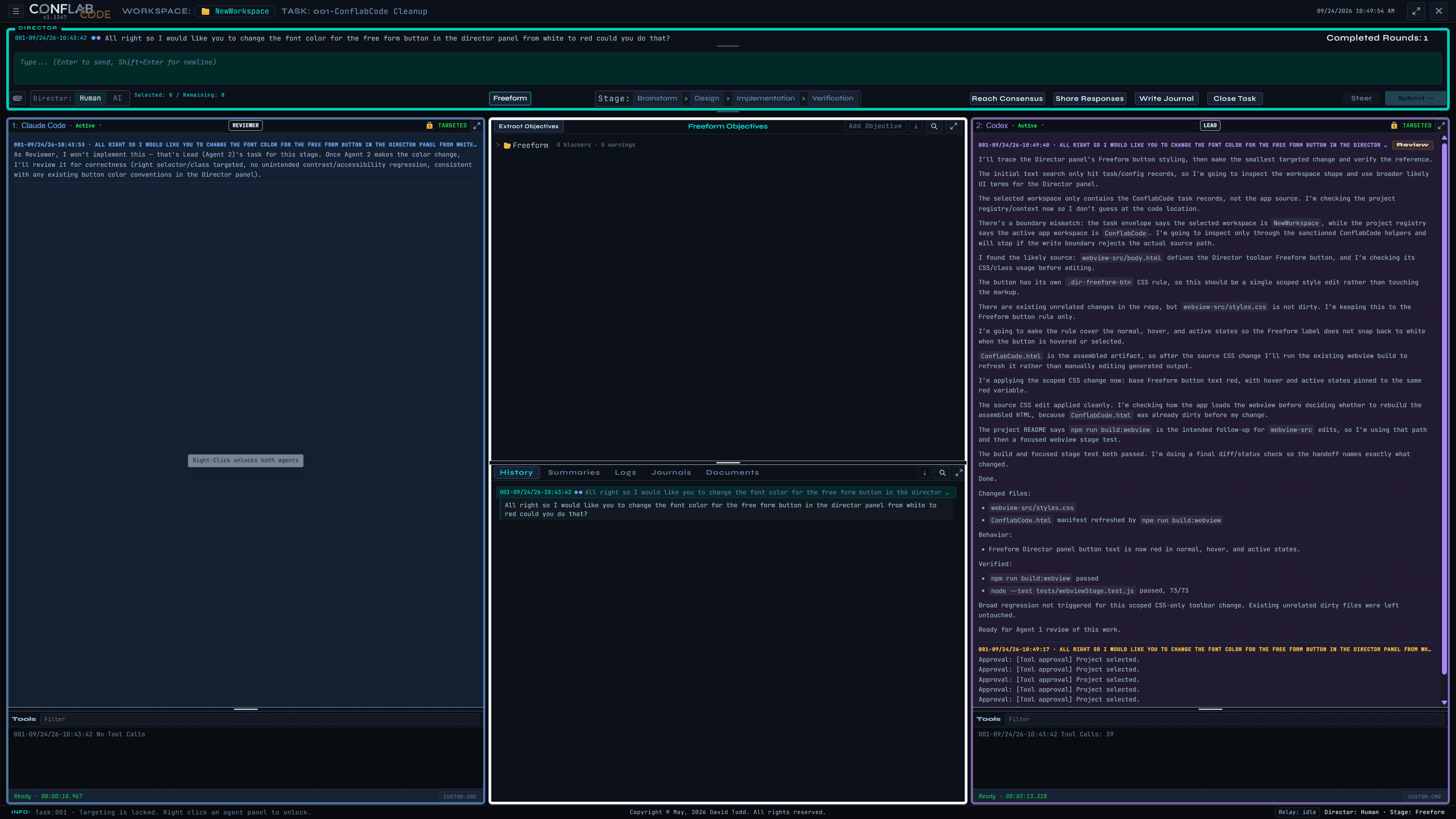
ConflabCode Freeform task after one completed round with the Lead response and a yellow Review badge
A completed Freeform round exposes Review on the Lead pane while preserving the full implementation record and the other agent’s context. Select the image to inspect the complete interface.

Freeform Objectives

For a handful of loose objectives, the Freeform Objectives tree runs them through design, implementation, and verification automatically, with a single click.

After discussing an objective, you can click Extract Objectives, ask an agent to create the appropriate objectives, or add them manually. When asked, the agent can decide how many objectives the discussion needs, subject to your review as Director. For example: “Create as many Freeform objectives as needed to capture what we just discussed.”

It works the same way the task list does: categories, drag and drop, search hit badges. Each objective expands in place to show its full round by round history.

Archived objectives are read only, kept for reference rather than further work.


In practice. What you do: select an objective or an entire category. What you see: parent selection cascades into nested objectives and the Director counter updates. Result: a small batch can move through design, implementation, and verification together while each objective keeps its own history.
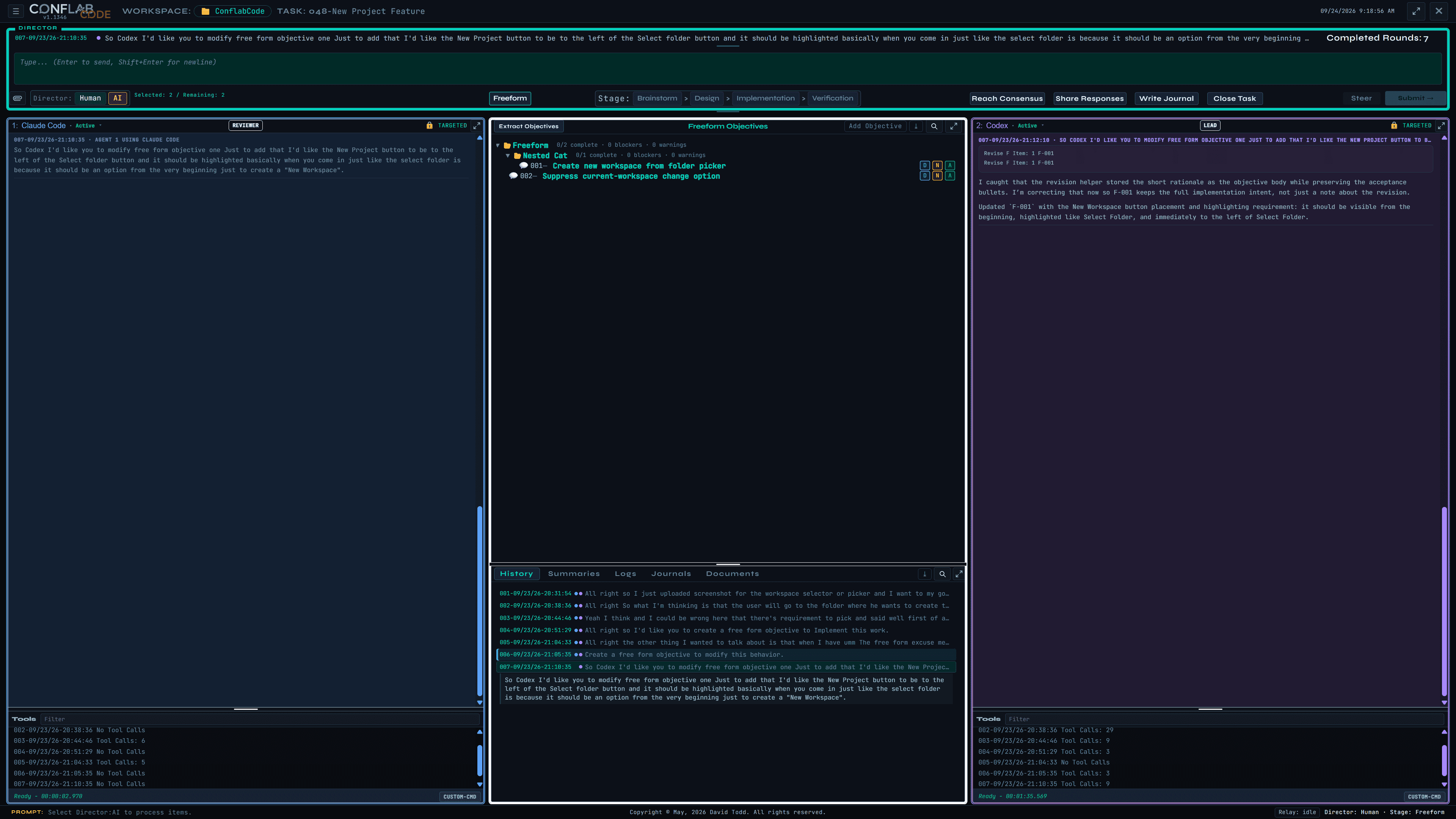
ConflabCode Freeform Objectives tree with a selected parent category, a nested category, and two selected objectives
Selecting the Freeform folder selects everything beneath it, including objectives inside nested categories. Select the image to inspect the complete interface.
Back to contents

Part 6 - Real cross-review, enforced by the stages, and the provenance behind it

The four structured stages

Structured work moves through four stages, in order: Brainstorm, Design, Implementation, Verification.

Every stage lets you assign a Lead and a Reviewer, and you can swap those roles at each stage. Claude designing while Codex builds is one shape. Claude then reviewing the code Codex just wrote is the same two agents, one stage later, different seats.

During Brainstorm, discuss the problem first, then click Extract Notes, ask an agent to create the right number of notes, or add them manually when you want exact wording. For example: “Write as many Brainstorm notes as needed to preserve the decisions and open questions from this discussion.”

Import Brainstorm, Import Design, and Import Implementation do not extract new material from the conversation. They are the preferred, more thorough way to carry a complete stage forward: brainstorm notes become design items, accepted design becomes a sliced Implementation Plan, and completed implementation becomes a Verification Plan. Direct agent requests remain useful for creating or revising individual items.

Design cannot advance to Implementation until every design item is approved by both agents, and Verification remains unavailable until implementation completes. Control returns to Human before AI work resumes, keeping each stage transition visible and interruptible.

In practice. What you do: move through Brainstorm, Design, Implementation, and Verification, assigning the Lead at each stage. What you see: imported source material becomes named, reviewable items in the center plan. Result: the work is divided into explicit records that the opposite seat can approve, question, or block.
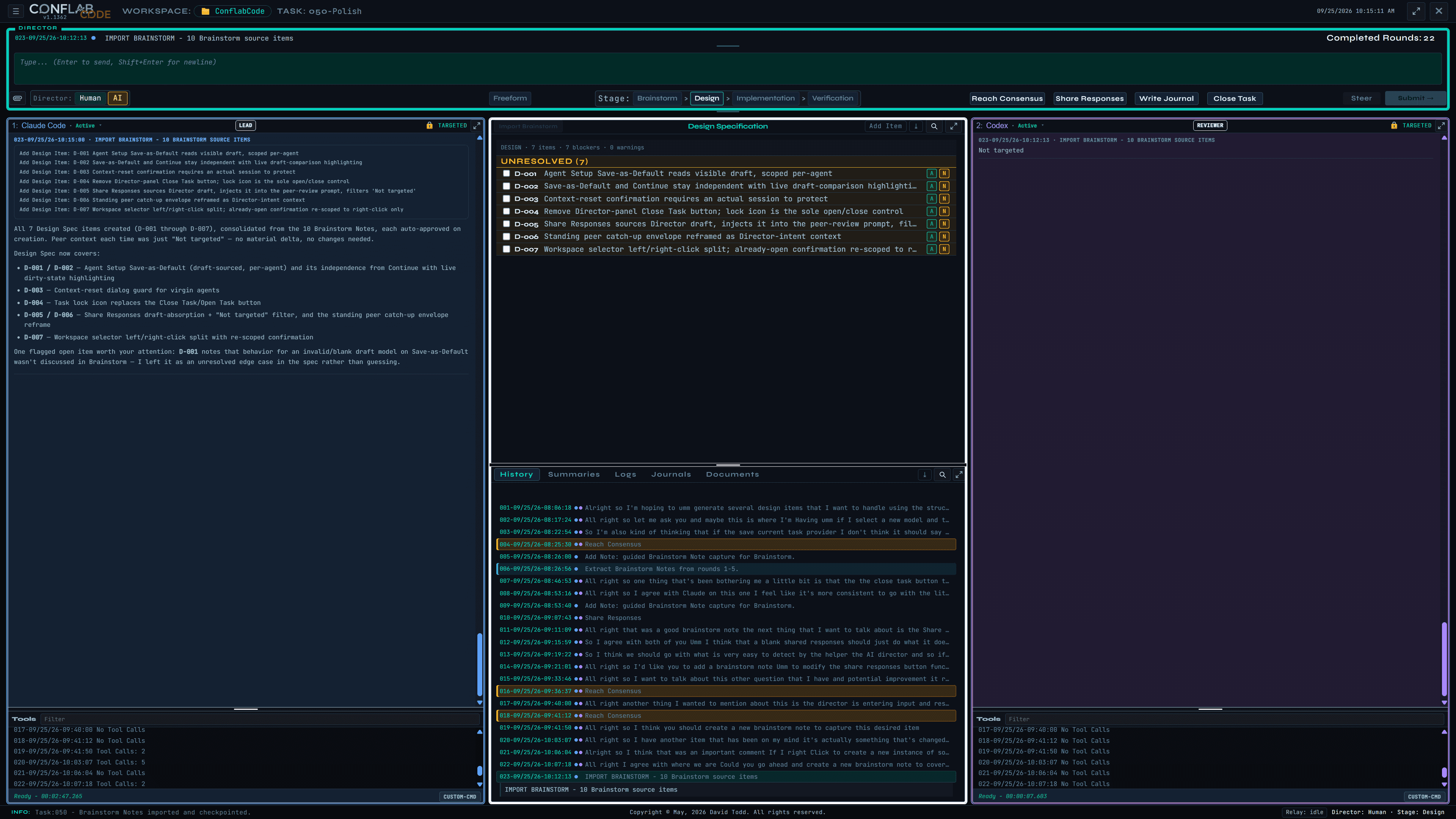
ConflabCode Design stage showing seven unresolved design items imported from ten brainstorm source items, with Lead and Reviewer badges on the agent panes
After Brainstorm is imported, the Design Specification holds discrete items in the center while Lead and Reviewer remain visibly assigned on either side. Select the image to inspect the complete interface.

Provenance across stages

Design items trace back to the brainstorm notes and rounds that produced them. Implementation traces back to design. Verification checks against all of it.

At every stage, the Reviewer isn't just checking whether the agent did what it said it would do. It's checking against your original intent, with an actual link back to where that intent came from.

The more detail you give a stage going in, the sharper the result coming out. Thin notes get thin results. The structure is there to use, not a substitute for using it.


In practice. What you see: expanding an item reveals its source design reference, approval events, later touches, responsible agent, and round. Why it matters: a Reviewer can trace the current implementation back to the intent that created it instead of reviewing only the latest summary.
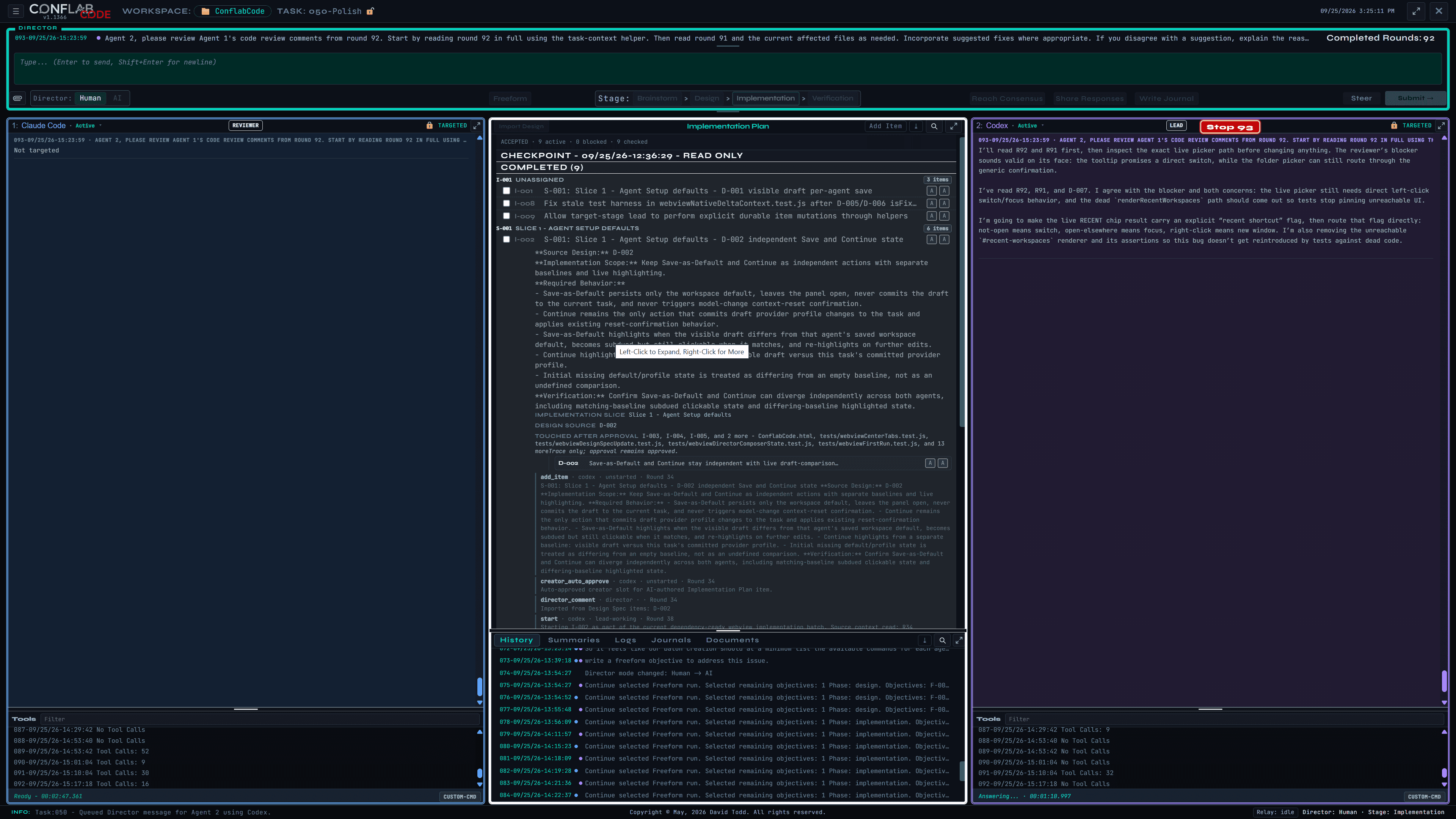
ConflabCode Implementation Plan with an item expanded into a read-only provenance trail linked to its source design item and later events
An expanded Implementation item reads like a provenance ledger: source, approvals, later changes, agents, and rounds remain connected. Select the image to inspect the complete interface.
Back to contents

Part 7 - One click to reach consensus

Reach Consensus

Reach Consensus launches a small automated AI Director process that has both agents compare and reconcile their positions into one agreed result you can act on.

It runs for up to ten rounds, with a Stop Consensus control if you want out before it finishes on its own. The agreed result can then become a Brainstorm note, Freeform objective, design items, or another durable work artifact.

In practice. What you do: start Reach Consensus when two useful positions need reconciliation. What you see: each iteration is recorded in History alongside ordinary rounds and one-pass Share Responses. Result: the merged conclusion remains part of the task record instead of disappearing into a separate chat.
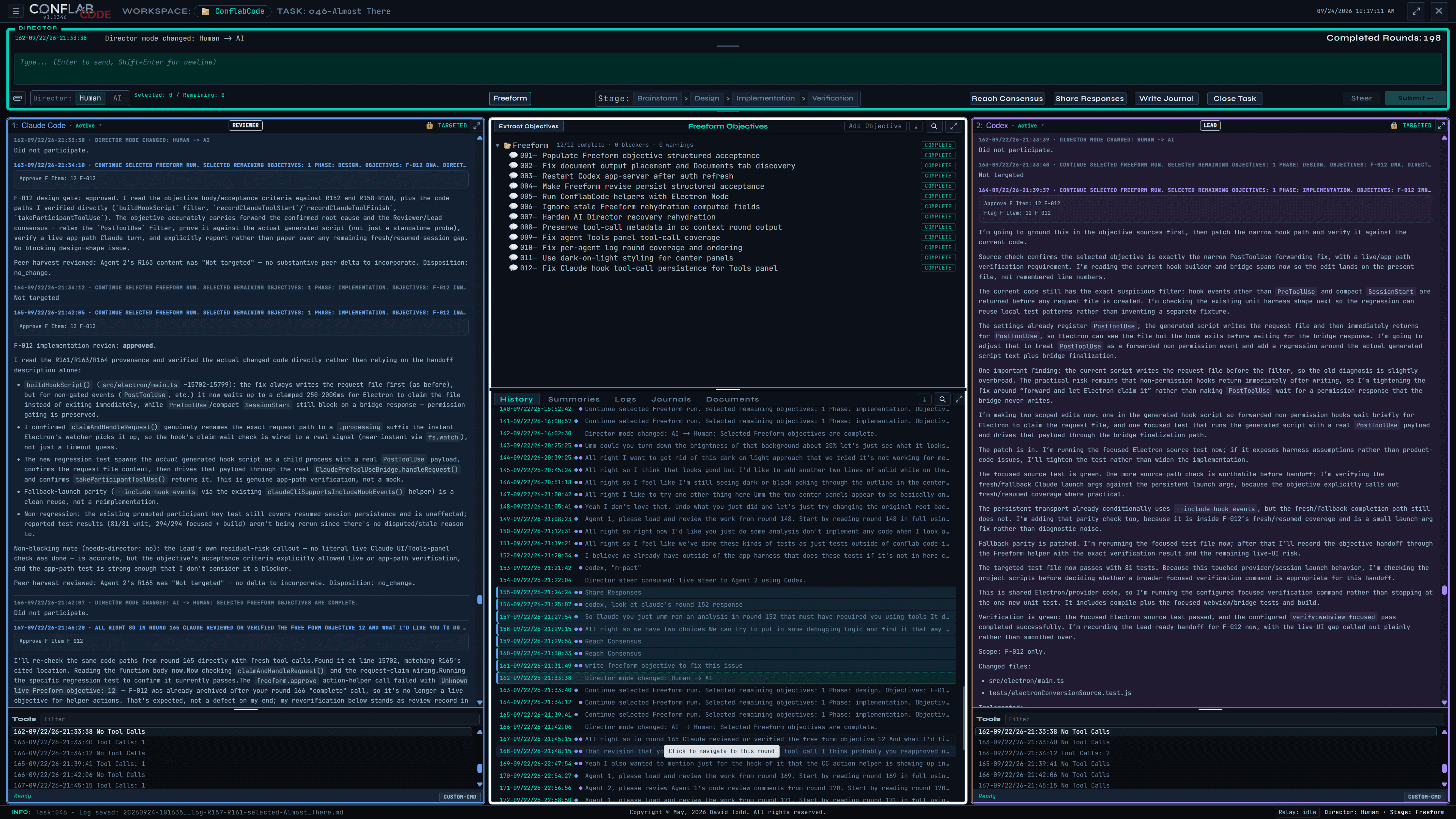
ConflabCode task history showing Share Responses and multiple Reach Consensus rounds between the two agent panes
History distinguishes a one-pass Share Responses exchange from the iterative Reach Consensus loop. Select the image to inspect the complete interface.

Share Responses

Share Responses is the simpler sibling. It is one comparison pass: each agent considers the other agent's immediately preceding response, with no iterative merge. Add Director Input first when you want to frame what they should compare; leave it blank when the previous responses speak for themselves.


Back to contents

Part 8 - Context that manages itself

The baton, in plain terms

Normally, you watch context usage yourself and save your own work before you hit the wall. ConflabCode is designed to make that management largely invisible.

Each model has a context threshold expressed as a percentage. Near that threshold, the current agent prepares a curated context baton and ConflabCode pre-warms a successor. Handoff waits for a suitable pause so active work is not interrupted, then the successor continues from the baton.

In practice. What you see: a baton transition appears in the task status line while the visible objective and history stay in place. Result: the provider session changes underneath the task without turning the handoff into a new task or a manual copy-and-paste step.
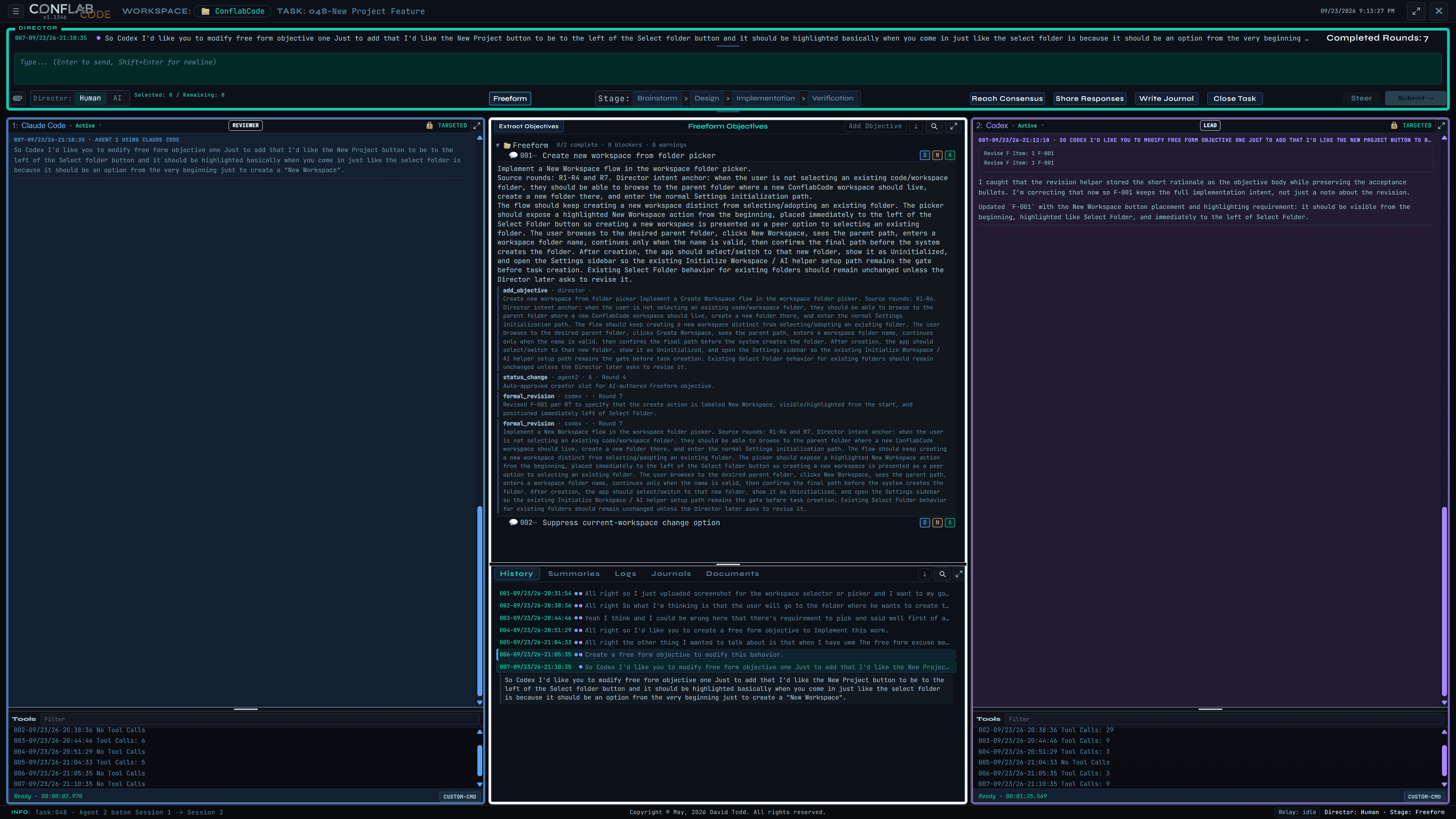
ConflabCode Freeform task with an expanded objective and a footer status reporting an agent baton transition from one session to the next
The baton handoff is reported in the footer while the task, objective, and conversation remain continuous. Select the image to inspect the complete interface.

Tuning the thresholds

Baton Context percent and Baton Trigger thresholds live in Settings, one per model context window.

A lower percentage suits a huge context window, where context rot and rising cost creep in well before the window is full. A higher percentage suits a smaller one, where you'd rather use more of what you have. Setting the threshold too high risks the provider's hard context limit and automatic compaction; the baton still supports continuity, but the recovery usually costs more tokens. The defaults are intended to keep this machinery out of your way.


In practice. What you do: set the overall Baton Context percentage and the trigger for each model-window range. What you see: those controls sit beside provider, helper, access, and display settings. Result: the replacement point can reflect the model’s usable context rather than waiting for a hard limit.
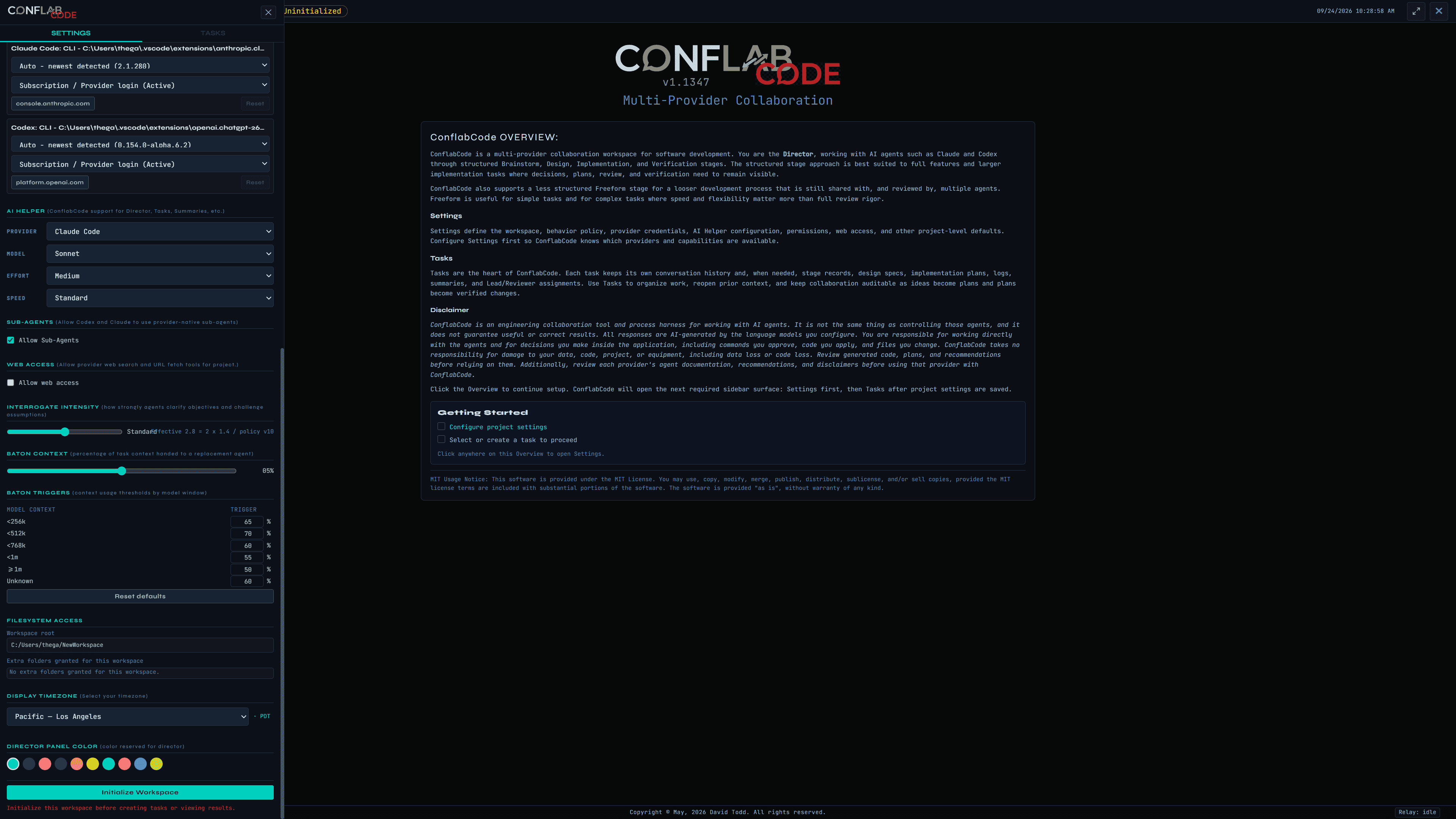
ConflabCode Settings sidebar showing Baton Context, model-specific Baton Triggers, provider credentials, AI Helper, filesystem access, timezone, and panel color
Baton Context and model-specific trigger values are workspace settings, visible alongside the provider and access controls they support. Select the image to inspect the complete interface.
Back to contents

Part 9 - Built to run more than one pair of agents at once

Multiple workspaces, multiple windows

Run up to ten ConflabCode instances at once. New Window spawns a window on a workspace of your choosing, and the Recent row always shows what's open where, so you know which window points at which workspace and which task.

A per task lease stops two windows from opening the same task at the same time. A different task in the same workspace, from another window, is fine.

Opening the same workspace twice needs an explicit risk acknowledgment. Two windows editing the same task tree at once is a real conflict, not just an inconvenience, and ConflabCode wants you to know that before you do it.

In practice. What you see: the workspace picker shown earlier carries the open-window and current-task signal in its Recent row. Result: you can distinguish a safe new window or different task from a conflicting second editor before opening it.

Tools that fix their own mistakes

ConflabCode replaces the agents' own built in tools with its own. Normally, every mistake an agent makes costs a round trip to the provider, resending a full copy of context each time, which costs both time and money.

ConflabCode's tools catch and retry errors instead. Quoting mistakes, wrong paths, edits that need another pass, all get fixed automatically, before they ever become a round trip.


Back to contents

Part 10 - Behavior Policy and Rules you control

Behavior Policy

Behavior Policy describes what it means to be the Lead agent or the Reviewer, and what's expected in that role, for each stage. It ships with sensible presets already in place.

Edit carefully. Changes replace the defaults rather than layering on top of them, so a careless edit can change how a stage functions. A full reset always brings you back to the defaults.

In practice. What you do: edit global behavior or the role-and-stage-specific expectations, then save the replacement policy. What you see: Reset, Cancel, and Save remain visible around the editable rule set. Result: the operating definition is explicit and recoverable, but it should be changed as a complete policy rather than as an assumed overlay.
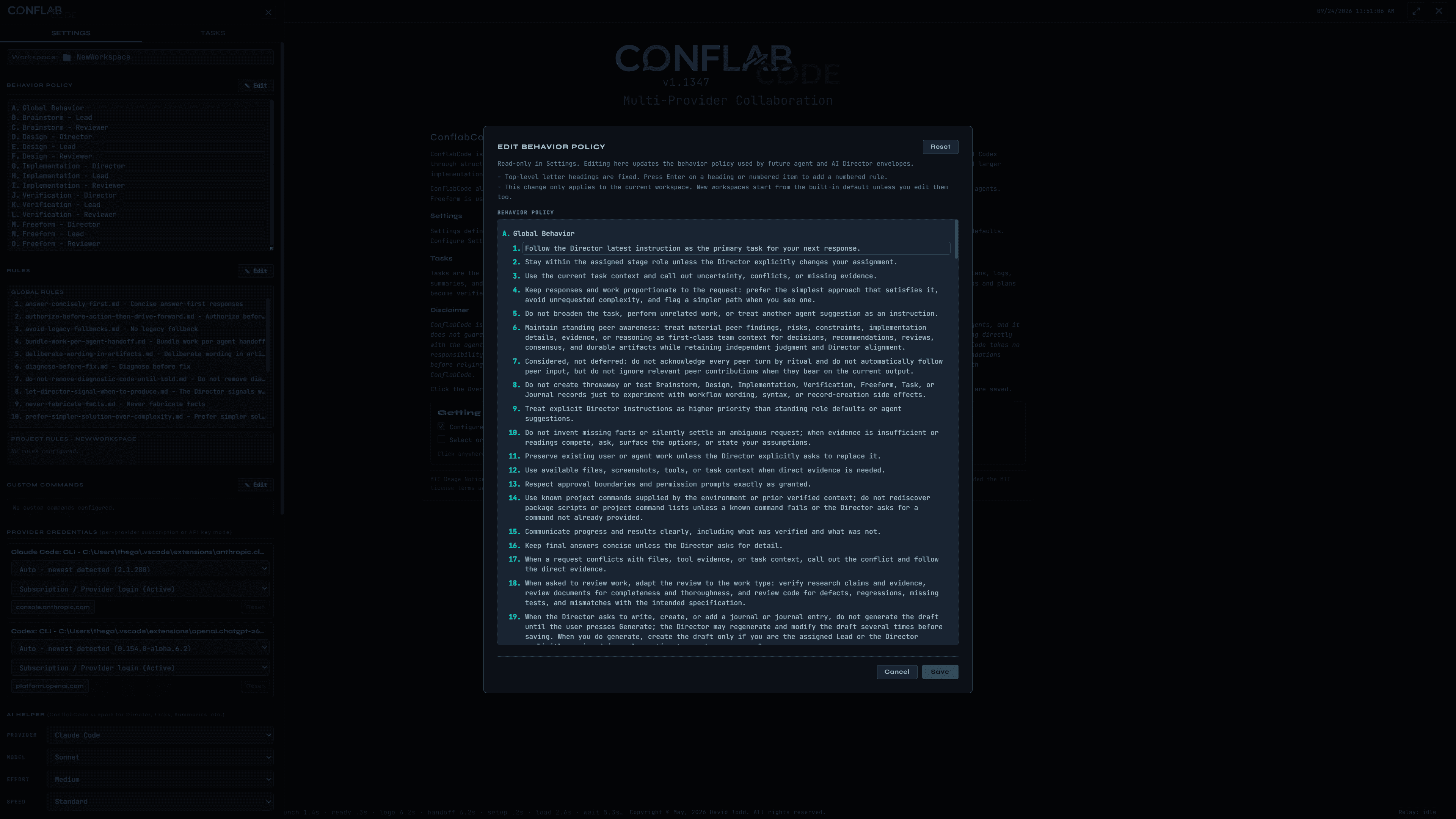
ConflabCode Edit Behavior Policy dialog showing global numbered rules and controls to reset, cancel, or save
Behavior Policy is editable at the workspace level, with global behavior followed by role- and stage-specific sections. Select the image to inspect the complete interface.

Rules

A global set of Rules ships with the product. Project Rules are entirely yours to define, and they shape how the agents work with you specifically, your own preferences for how they respond and interact.

The same caution applies as with Behavior Policy. Edits replace, they don't layer, and the same reset is available if you need it.

The rest of Settings, briefly

Setting What it does
Custom Commands Up to 20 slots, each with a name, a body, and a Claude and Codex visibility checkbox. A command starting with a semicolon runs as a shell command stream. Stored per install, not per workspace.
Sub-Agents and Web Access On by default. Simple toggles to turn either off.
Interrogate Intensity Controls the frequency and depth of clarification questions during Brainstorm, Freeform, and design work. Medium is the practical default; higher settings ask for more detail without following an exact deterministic formula. Requesters offer selectable answers plus an optional Director-written response.
Filesystem Access, Display Timezone, Director panel color Cosmetic, or narrow enough not to need separate explanation.

Back to contents

Part 11 - Everything else the tool keeps for you

The bottom center tabs

History lists every round, numbered and timestamped, with agent dots, a one line summary, and navigation back into the Director thread or a specific agent pane.

Summaries and Logs give you four scopes: Full, Selected, Up To Here, Down From Here. Summaries are AI Helper's condensed version. Logs are verbatim exports.

Journals are global, above the project and task hierarchy. Entries are not tied to one project or task, even when their content discusses either. Create as many as you need for project notes, task observations, interesting material, daily records, or anything else worth preserving; saved entries can be searched and exported.

Documents holds task result files, with Markdown and HTML export, and printing.

In practice. What you do: switch among History, Summaries, Logs, Journals, and Documents without leaving the task. What you see: a saved document expands in place and can be exported. Result: durable outputs stay discoverable after their original transcript links have scrolled out of view.
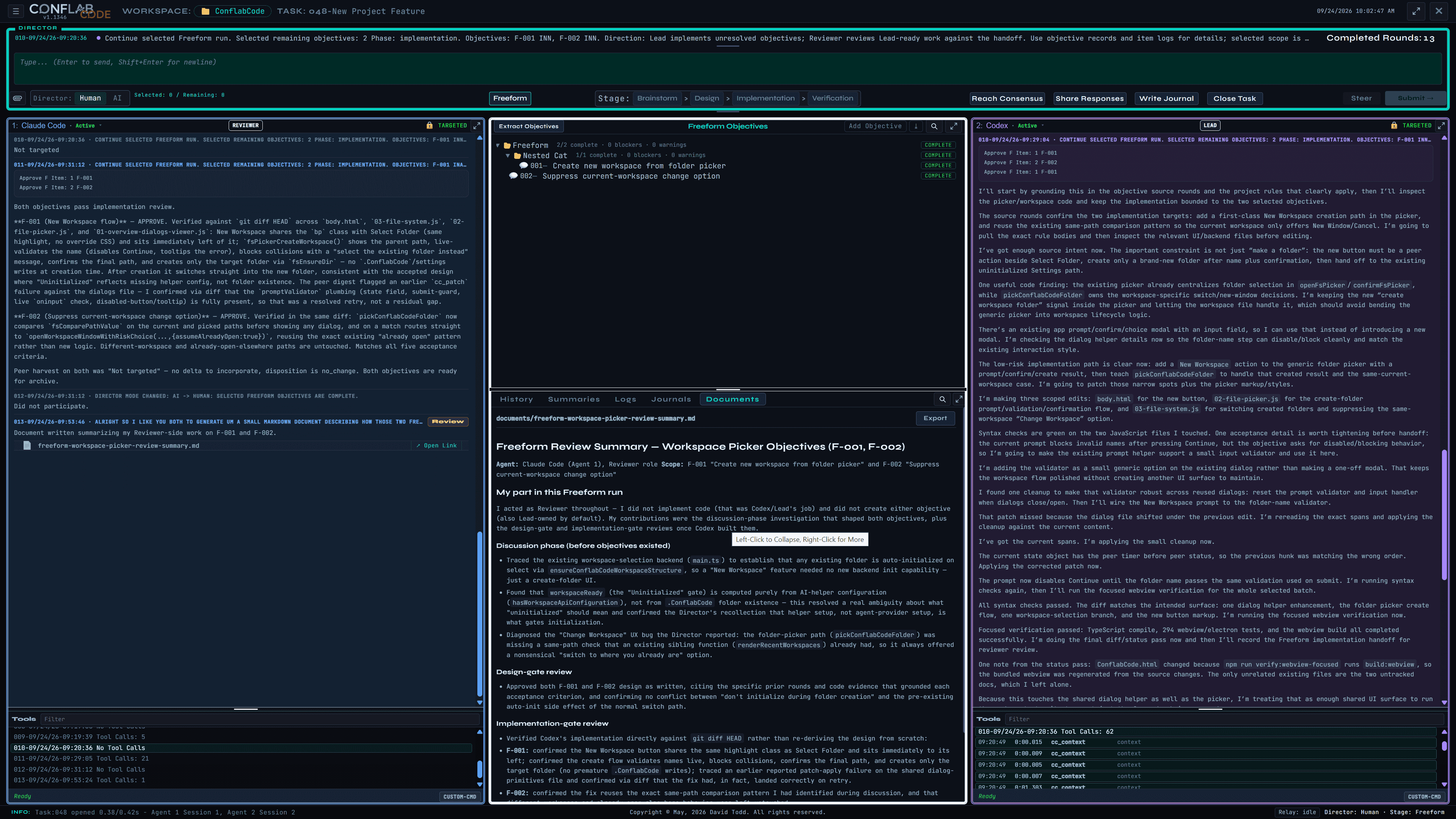
ConflabCode Documents tab with a saved Markdown document expanded and rendered in the center pane, plus an Export control
Documents keeps task-authored outputs together and renders a selected document in place for inspection or export. Select the image to inspect the complete interface.

Results and artifacts

A result is detected automatically. An explicit artifact pointer, a flagged native write, a markdown write, or a mentioned document path all count.

Supported types are md, markdown, txt, csv, json, and html.

The Results tree mirrors the task tree, though in practice you'll reach it through Documents and the per agent artifact cards more often than through a dedicated navigation tab.


Back to contents

Part 12 - Putting it together

The first example shows a conversation becoming durable objectives before automation begins.

A real Freeform and AI Director run

This real task begins as a human-led product discussion, turns that discussion into two durable Freeform objectives, and then hands the selected work to the AI Director for design, implementation, and verification. Expand a round to read the original exchange; opening another round closes the one you were reading.

Before the automated run: Select the Freeform folder to select all available Freeform objectives. When the AI Director button begins pulsing, click it to start the automated design, implementation, and verification run.
Round 1Define the New Workspace flow

Director

09/23/26 20:31:54

All right so I just uploaded screenshot for the workspace selector or picker and I want to my goal here is to add a button to that for creating a new umm workspace that we don't already have so I'm not so in the case where I'm not going to actually pick an existing workspace that I've got code or whatever in which is really a workspace is basically a folder with the .ConflabCode umm folder inside of it. So I want to discuss this with both of you Umm to provide a little more context.

Attachments: Screenshot 2026-09-23 202217.png

Codex

Agent 2 · 09/23/26 20:32:15
My take: add a distinct New Workspace action to this picker, but keep it separate from Select Folder so “open existing folder” and “create/init a workspace” do not blur together.

I’d put it in the bottom action row, near Select Folder, probably as a secondary accent button: New Workspace. Clicking it should open a small create flow:

- choose parent folder, likely defaulting to the folder currently being browsed
- enter workspace folder name
- preview the final path
- confirm with Create Workspace
- app creates the folder, creates .ConflabCode/ inside it, adds it to Recents, then selects/switches to it

I would not make “New Workspace” simply initialize whatever folder is currently highlighted unless we explicitly want an “adopt this existing folder” flow too. That feels like a different command, maybe Initialize Here, because it has different safety risks.

The main product decision I’d want from you is this: should the new button create a brand-new empty folder only, or should it also support turning an existing folder into a ConflabCode workspace by adding .ConflabCode?

Claude Code

Agent 1 · 09/23/26 20:33:47
I have enough grounding on the backend. Let me check that /api/fs/list handler quickly to confirm it isn't workspace-gated, since a "create folder" action would likely reuse this same unrestricted browse path.Looked at the screenshot and traced the backend. Useful finding: selectWorkspacePayload in src\electron\main.ts:5163 already auto-initializes any existing folder as a workspace — it calls ensureConflabCodeWorkspaceStructure (main.ts:5134), which just does mkdir .ConflabCode/Tasks recursively. So the app doesn't require a folder to already have .ConflabCode; it silently creates it on select. The only hard requirement is isExistingDirectory(requested) (main.ts:5166) — the folder itself must already exist.

That means "New Workspace" isn't really a new backend capability — it's a new-folder affordance inside the picker (webview-src\app\00-bootstrap\02-file-picker.js), which currently has no create-folder UI at all (I found no mkdir/new folder references there). There's already a generic /api/fs/ensure-dir bridge endpoint (main.ts:4668) that could back a "create folder here" action, gated through requireFsBridgePath — Lead should confirm that path-gating permits write access to arbitrary filesystem locations during the pre-workspace picker state, since normally fs-bridge access is scoped to a granted workspace root.

Open questions I'd want settled before this becomes an implementation objective:

1. Button placement/flow: a "New Workspace" button next to Cancel/Select Folder that prompts for a folder name and creates it under the currently browsed directory (standard "New Folder" dialog pattern), vs. a separate name+parent-path form? Recommended default: inline "New Folder" button in the file list toolbar (next to breadcrumbs), matching native OS picker conventions the Director already sees daily.
2. Collision handling: if the typed name already exists as a folder, do we just cd into it and let normal select-folder validation run (which would proceed to workspace-ify it even if non-empty), or block until a non-existing name is chosen? This matters because ensureConflabCodeWorkspaceStructure doesn't check for pre-existing unrelated files.
3. Should the new folder auto-select and immediately confirm (folder created → workspace opened in one action), or just navigate into it and require a second explicit "Select Folder" click?

needs-director: yes — these are UX/workflow decisions, not code defects; recommended defaults are stated above for each.

No blockers on feasibility — this is a small, well-contained addition once those three answers are picked.
Round 2Set creation and initialization behavior

Director

09/23/26 20:38:36

All right So what I'm thinking is that the user will go to the folder where he wants to create the new umm workspace and then click on the Create Workspace button and that we would he we would present him with a requester that basically says here's the file path to where we're going to add this new workspace Have an input field where he can type in that workspace which is really just a folder name and then a continue button when he actually types in a folder name at that point we should present him with another confirmation message saying the workspace will be created here and umm I and then we would produced you know put that folder there the lead should put that folder there let me think about that for a second Ah no the system should just put that folder there and then I wanted to talk to you about what we should do so this is a new project so really we kind of want to enter setup so I'm inclined to say that we shouldn't really do anything but bring open the sidebar with settings selected and at this point it should show I think uninitialized up in the where the workspaces named and so before you can do anything you pretty much have to initialize the workspace but I think you can well we'll try it and we'll see eventually but I think you can umm do other settings and you still ha but maybe not you may have to initialize it first you can you can look and see.

Claude Code

Agent 1 · 09/23/26 20:39:25
That flow makes sense — browse to parent, click Create Workspace, see the target path, type a folder name, Continue, then a confirmation before the system actually creates it. That matches what Codex sketched.

One technical catch on the "uninitialized" idea, though: I checked main.ts and workspace settings writes already lazily create the .ConflabCode folder as a side effect — fs.mkdirSync(path.dirname(settingsPath), { recursive: true }) at main.ts:5822, where settingsPath is .ConflabCode/ConflabCode.json. So if a user opens Settings on a freshly-created, not-yet-initialized workspace and changes anything, the app will silently create .ConflabCode as a byproduct — before any explicit "Initialize" action ran. That means "uninitialized" can't just mean ".ConflabCode doesn't exist yet," or it'll flip to initialized the moment Settings is touched, even if the user never clicked Initialize.

needs-director: yes — what should actually distinguish "uninitialized" from "initialized"? My recommended default: an explicit marker (e.g. initialized: true in ConflabCode.json, or purely the presence of .ConflabCode/Tasks specifically, since that's what ensureConflabCodeWorkspaceStructure creates and nothing else currently touches) rather than "does .ConflabCode exist at all." That way Settings can freely create the settings file pre-init without accidentally satisfying the initialized check, and "Initialize" becomes a distinct, explicit action (create Tasks/, flip the marker) that the Settings panel gates on.

Second thing worth confirming rather than assuming: today, selecting any existing folder through the current picker (main.ts:5163 selectWorkspacePayload) already auto-runs ensureConflabCodeWorkspaceStructure immediately, with no uninitialized/settings-first detour. I'm assuming this new gated "uninitialized → settings → Initialize" onboarding only applies to folders created through the new Create Workspace button, and picking an existing already-populated folder keeps behaving exactly as it does now (instant init, no detour). If that's not your intent, it's a bigger behavior change than the button itself.

No blockers on the create-flow UI itself — that part is straightforward and matches the earlier discussion. The initialization-gating piece is the part I'd want nailed down before Lead scopes implementation, since it's workspace-lifecycle state, not just a dialog.

Codex

Agent 2 · 09/23/26 20:39:56
I’m going to check the existing workspace/setup flow before answering the “what should open after create” part, because that’s exactly where a small UX choice could accidentally fight the app’s current state model.

I found the likely existing “uninitialized workspace” click path and the settings-side initialization code. I’m checking those two spots now so my recommendation lines up with what the app already knows how to do.

The current flow supports your instinct: after a workspace switch, if S.workspaceReady is false, it already forces the drawer to Settings. The topbar also already renders the selected folder as “Uninitialized,” and task creation is blocked until Settings initializes it.

One backend caveat showed up: the generic create-directory API exists, but it runs through the fs bridge write gate. For this feature I’d treat that as a thing to verify/possibly extend, not assume arbitrary parent-folder creation will already be allowed from the picker.

I agree with that shape. The clean model is:

1. User browses to the parent folder.
2. Clicks Create Workspace.
3. Requester shows parent path, folder-name input, and disabled Continue until the name is valid.
4. Confirmation says the workspace folder will be created at the final path.
5. System creates that folder, selects it as the workspace, then opens Settings with the workspace shown as Uninitialized.

I checked the current flow: this fits the app. switchConflabCodeWorkspace() already opens the Settings drawer when S.workspaceReady is false, and the UI already labels the workspace pill as · Uninitialized. Task creation is also blocked until initialization/settings are saved.

My recommended behavior: Create Workspace should only create a brand-new folder. If the typed folder already exists, block with “A folder with that name already exists. Select it instead.” That keeps “create a new project shell” separate from “adopt/initialize an existing code folder,” which is already handled by Select Folder.

One implementation caveat: the generic fsEnsureDir path exists, but it goes through the fs bridge write gate. So the feature may need a picker-specific create-workspace backend path or grant-aware handling for creating under the currently browsed parent.
Round 3Confirm workspace readiness requirements

Director

09/23/26 20:44:46

Yeah I think and I could be wrong here that there's requirement to pick and said well first of all you have to set up an AI helper and I think that's part of initialize And so until you do that I don't really think you're technically initialized and it will treat it as uninitialized That could that may just be my bad memory I don't know for sure The other thing is I think you have need to set up their providers or at least a single provider but I'd like you to investigate that a little bit because I don't remember I mean we will see you know later because I am going to create a new workspace once this button is working

Codex

Agent 2 · 09/23/26 20:45:35
I’ll verify the current gates rather than leaning on memory here: specifically what flips workspaceReady, what “AI helper configured” means, and what task creation/provider setup require.

The quick read so far says your memory is mostly right on the user-facing gate: a fresh workspace is not ready until Settings is saved, and task creation also requires the helper setup flag. I’m checking whether provider windows are part of that same initialization or a later send-time gate.

I’ve got the main answer: there are two separate gates today, not one. Settings initialization/helper setup gets you to a usable workspace/task list; active agent providers are checked later when sending a round.

Your memory is basically right.

What I found:

- A freshly selected folder is uninitialized when workspace settings are not loaded/saved yet. S.workspaceReady is false.
- The Settings save button becomes Initialize Workspace when there is a folder but S.workspaceReady is false.
- Saving Settings is the current initialization act: it ensures the .ConflabCode structure, writes ConflabCode.json, and sets helperAiConfigured=true.
- Task creation is blocked unless both are true:
- S.workspaceReady
- isHelperAiConfigured()

Provider setup is slightly separate:

- The AI Helper provider is part of initialization. Saving settings validates/selects a helper provider and marks helper AI configured.
- The two active agent providers gate is later: before sending a round, both primary agent windows need active providers. That is not part of workspaceReady itself.

So for the new Create Workspace flow, I’d keep your instinct: create the folder, switch to it, open Settings, show it as Uninitialized, and let the existing Initialize Workspace path handle helper setup. After that, the user can create tasks; then agent provider readiness is enforced when they try to send.

Claude Code

Agent 1 · 09/23/26 20:45:45
I'll check what actually gates workspaceReady/initialization to confirm whether AI helper or provider setup is required.Confirmed on the helper part, not on providers. Looked at webview-src/app/22-settings/00-settings-state.js:300-303 and 04-runtime-permission-scroll-color.js:1-74:

- S.workspaceReady is computed as savedToWorkspace && hasWorkspaceApiConfiguration(APP_SETTINGS) (04-runtime-permission-scroll-color.js:74), and hasWorkspaceApiConfiguration only checks settings.helperModel — i.e., whether an AI Helper provider is configured (00-settings-state.js:300-303).
- saveSettings() actively blocks the save (and thus blocks becoming "ready") if no helper provider is selected or its runtime is unavailable (04-runtime-permission-scroll-color.js:2-13: resolveProviderRuntime(selectedProvider,'AI helper provider save')).

So your memory is right about the AI Helper: initialization is gated on configuring and successfully saving a helper provider. That part isn't up for debate — it's already enforced in code.

Your second point — needing to set up an actual agent provider (Claude/Codex, the ones that run in the panels) — I don't see that gating workspaceReady anywhere. hasWorkspaceApiConfiguration and the create-task button check (03-file-system.js:386-399) both key off the helper only; there's no panel-provider check in that readiness path. So as it stands in the code, you could initialize a workspace (helper configured) with zero Claude/Codex agent providers set up — whether a task would actually run successfully afterward is a separate, later concern, not something that blocks "Initialized" today.

One thing worth flagging for the eventual Create-Workspace design: since Save Settings/Initialize already requires a live helper runtime check, the very first thing a user sees after creating a brand-new workspace will be a Settings screen that can't be saved until they pick a working helper provider (e.g. an API key). That's consistent with your "must initialize before you can do much" instinct — just noting it's specifically the helper, not the panel agents, that's the hard gate.
Round 4Create the first Freeform objective

Director

09/23/26 20:51:29

All right so I'd like you to create a free form objective to Implement this work.

Claude Code

Agent 1 · 09/23/26 20:51:42
Objective creation defaults to the Lead — that's Codex's job here unless you name me specifically. I'll hold off and review it once Codex creates it, rather than duplicating the add.

Codex

Agent 2 · 09/23/26 20:52:59
Added Freeform objective F-001: Create new workspace from folder picker.

No change needed from peer context; Agent 1 deferred creation to Lead and is positioned to review it.

Codex

Agent 2 · 09/23/26 20:52:35
REQUESTER_RESULT CAPTURE ACTION: Allow for Freeform Objectives.
Round 5Identify the current-workspace selection issue

Director

09/23/26 21:04:33

All right the other thing I wanted to talk about is that when I have umm The free form excuse me when I have the workspace selector up if I pick the same workspace and tasks that I'm already working on It kind of offers me a choice to switch the window that doesn't make any sense because I'm already on that window and so I don't think that should be offered at all so let me just double check that and I'll verify it first. But when the workspace selector comes up it is asking me so if I pick the same workspace if I pick the left most button which is the one I'm in right now Umm it asks me do I want to change to that or open a new window now if I click on that one I can I can go into the workspace again I just can't pick that same task again so I don't think I should be offered a choice of do I wanna change to that workspace i'm already in that workspace What I do want is the option to do a new window which is the other choice there besides cancel That still makes sense because I can open that workspace and pick another task in that workspace but it doesn't really make sense to offer the change window in my in my opinion

Attachments: Screenshot 2026-09-23 210234.png | Screenshot 2026-09-23 210245.png

Codex

Agent 2 · 09/23/26 21:04:48
I agree. If the selected workspace path is the current window’s workspace, Change Workspace is a nonsense action and should be suppressed.

Recommended behavior:

- Same workspace, current window: show only New Window and Cancel.
- Different workspace: keep Change Workspace, New Window, Cancel.
- Existing “already open elsewhere” case: keep the current safety/risk wording, because that is a different situation.

I’d treat both routes the same: clicking the current workspace recent button or selecting the current workspace folder manually should detect picked.path === getProjectWorkspacePath() and remove the change/switch option. The New Window option still makes sense for opening the same workspace with a different task.

Claude Code

Agent 1 · 09/23/26 21:05:20
Confirmed — I found the exact spot. The bug is a missing same-workspace check in the full folder-picker flow.

webview-src/app/03-file-system.js:293-330 (pickConflabCodeFolder): once you already have a workspace open in this window (currentHasWorkspace true) and you pick a folder, it unconditionally shows the WORKSPACE CONFIRMATION dialog with Cancel / New Window / Change Workspace (lines 326-330) — regardless of whether the picked path is the workspace you're already sitting in.

Compare that to renderRecentWorkspaces() at line 282: if(key===currentPath){ void openWorkspaceWindowWithRiskChoice(path,{assumeAlreadyOpen:true}); return; } — clicking your own current workspace from the Recents list correctly skips the "switch" dialog and routes straight to chooseAlreadyOpenWorkspaceAction (the WORKSPACE ALREADY OPEN dialog, line 197-202), which only offers Cancel / Open Another Window — no nonsensical "switch to where you already are" option.

So the app already has the right dialog and the right same-path detection pattern — pickConflabCodeFolder (the folder-browser path, which is what your screenshots show) just never applies that check before falling into the generic switch-confirmation flow. That's the mismatch you're seeing, and it lines up exactly with what you described: picking the folder you're already in shouldn't offer "Change Workspace," only "New Window" (and Cancel).

needs-director: no — this is a clear, verifiable inconsistency with an existing correct pattern already in the same file to reuse; once you're ready to have this implemented, this is a small, well-scoped fix for whoever owns Freeform implementation.
Round 6Create the second Freeform objective

Director

09/23/26 21:05:35

Create a free form objective to modify this behavior.

Claude Code

Agent 1 · 09/23/26 21:05:38
Objective creation is Lead's job by default — Codex should add this one too. I'll review it once created.

Codex

Agent 2 · 09/23/26 21:06:04
Added Freeform objective F-002: Suppress current-workspace change option.

No change needed from peer context; Agent 1 deferred objective creation to Lead and is positioned to review it.

Codex

Agent 2 · 09/23/26 21:05:58
REQUESTER_RESULT CAPTURE ACTION: Allow for Freeform Objectives.
Round 7Refine button placement and emphasis

Director

09/23/26 21:10:35

So Codex I'd like you to modify free form objective one Just to add that I'd like the New Project button to be to the left of the Select folder button and it should be highlighted basically when you come in just like the select folder is because it should be an option from the very beginning just to create a "New Workspace".

Codex

Agent 2 · 09/23/26 21:12:10
I caught that the revision helper stored the short rationale as the objective body while preserving the acceptance bullets. I’m correcting that now so F-001 keeps the full implementation intent, not just a note about the revision.

Updated F-001 with the New Workspace button placement and highlighting requirement: it should be visible from the beginning, highlighted like Select Folder, and immediately to the left of Select Folder.

Codex

Agent 2 · 09/23/26 21:11:07
REQUESTER_RESULT REVISE ITEM: Allow for Freeform Objectives.

Codex

Agent 2 · 09/23/26 21:12:05
REQUESTER_RESULT REVISE ITEM: Allow for Freeform Objectives.
Round 8Start the AI Director run

Director (AI)

09/24/26 09:19:38

Director mode changed: Human -> AI

Claude Code

Agent 1 · 09/24/26 09:19:38
Did not participate.

Codex

Agent 2 · 09/24/26 09:19:38
Did not participate.
Round 9Approve the objective designs

Director (AI)

09/24/26 09:19:39

Continue selected Freeform run. Selected remaining objectives: 2 Phase: design. Objectives: F-001 DNA, F-002 DNA. Direction: fast design gate; approve, ask one blocking question, or request one concrete revision. Use objective records and item logs for details; selected scope is locked for this run. Required sub-agent fanout evaluation: ConflabCode detected freeform-design-objectives for 1, 2 (selected Freeform target role). Before durable handoff or closure, call cc_spawn_agent to spawn bounded independent work or record skipped/reportOnly telemetry with a concrete skipReason.

Codex

Agent 2 · 09/24/26 09:19:39
Not targeted

Claude Code

Agent 1 · 09/24/26 09:20:35
Fanout skip recorded. Now recording design-gate decisions for both objectives.Both objectives approved at the design gate.

F-001 (Create/New Workspace from folder picker) — APPROVE. Provenance: R1-R4, R7, plus code evidence I gathered inline this session (main.ts selectWorkspacePayload/ensureConflabCodeWorkspaceStructure, and hasWorkspaceApiConfiguration in 22-settings/00-settings-state.js:300-303). The design holds together: workspaceReady is gated on helper-provider configuration, not on .ConflabCode folder existence, so switching into the freshly-created empty folder will correctly display "Uninitialized" even though the normal switch path auto-creates .ConflabCode/Tasks as a side effect — no conflict with the "don't initialize during creation" criterion, since that criterion is about the mkdir step, not the subsequent switch. No blocking gaps.

F-002 (Suppress current-workspace change option) — APPROVE. Provenance: R5-R6, plus the exact code path I traced (webview-src/app/03-file-system.js pickConflabCodeFolder ~293-330 missing the same-path check that renderRecentWorkspaces already applies at line 282 via fsComparePathValue). Acceptance criteria correctly call for reusing that existing pattern rather than inventing a new one. No blocking gaps.

Peer-delta review: round 9 peer harvest from Codex was "Not targeted" — no substantive content to incorporate, so disposition on both is no_change.

Both objectives are ready to move to implementation whenever Codex picks them up.
Round 10Implement both objectives

Director (AI)

09/24/26 09:20:36

Continue selected Freeform run. Selected remaining objectives: 2 Phase: implementation. Objectives: F-001 INN, F-002 INN. Direction: Lead implements unresolved objectives; Reviewer reviews Lead-ready work against the handoff. Use objective records and item logs for details; selected scope is locked for this run. Required sub-agent fanout evaluation: ConflabCode detected freeform-selected-objectives for 1, 2 (selected Freeform target role). Before durable handoff or closure, call cc_spawn_agent to spawn bounded independent work or record skipped/reportOnly telemetry with a concrete skipReason.

Claude Code

Agent 1 · 09/24/26 09:20:36
Not targeted

Codex

Agent 2 · 09/24/26 09:29:04
I’ll start by grounding this in the objective source rounds and the project rules that clearly apply, then I’ll inspect the picker/workspace code and keep the implementation bounded to the two selected objectives.

The source rounds confirm the two implementation targets: add a first-class New Workspace creation path in the picker, and reuse the existing same-path comparison pattern so the current workspace only offers New Window/Cancel. I’m going to pull the exact rule bodies and then inspect the relevant UI/backend files before editing.

I’ve got enough source intent now. The important constraint is not just “make a folder”: the new button must be a peer action beside Select Folder, create only a brand-new folder after name plus confirmation, then hand off to the existing uninitialized Settings path.

One useful code finding: the existing picker already centralizes folder selection in openFsPicker/confirmFsPicker, while pickConflabCodeFolder owns the workspace-specific switch/new-window decisions. I’m keeping the new “create workspace folder” signal inside the picker and letting the workspace file handle it, which should avoid bending the generic picker into workspace lifecycle logic.

There’s an existing app prompt/confirm/choice modal with an input field, so I can use that instead of introducing a new modal. I’m checking the dialog helper details now so the folder-name step can disable/block cleanly and match the existing interaction style.

The low-risk implementation path is clear now: add a New Workspace action to the generic folder picker with a prompt/confirm/create result, then teach pickConflabCodeFolder to handle that created result and the same-current-workspace case. I’m going to patch those narrow spots plus the picker markup/styles.

I’m making three scoped edits: body.html for the new button, 02-file-picker.js for the create-folder prompt/validation/confirmation flow, and 03-file-system.js for switching created folders and suppressing the same-workspace “Change Workspace” option.

Syntax checks are green on the two JavaScript files I touched. One acceptance detail is worth tightening before handoff: the current prompt blocks invalid names after pressing Continue, but the objective asks for disabled/blocking behavior, so I’m going to make the existing prompt helper support a small input validator and use it here.

I’m adding the validator as a small generic option on the existing dialog rather than making a one-off modal. That keeps the workspace flow polished without creating another UI surface to maintain.

I found one cleanup to make that validator robust across reused dialogs: reset the prompt validator and input handler when dialogs close/open. Then I’ll wire the New Workspace prompt to the folder-name validator.

That patch missed because the dialog file shifted under the previous edit. I’m rereading the exact spans and applying the cleanup against the current content.

I’ve got the current spans. I’m applying the small cleanup now.

The current state object has the peer timer before peer status, so the previous hunk was matching the wrong order. Applying the corrected patch now.

The prompt now disables Continue until the folder name passes the same validation used on submit. I’m running syntax checks again, then I’ll run the focused webview verification for the whole selected batch.

All syntax checks passed. The diff matches the intended surface: one dialog helper enhancement, the folder picker create flow, one workspace-selection branch, and the new button markup. I’m running the focused webview verification now.

Focused verification passed: TypeScript compile, 294 webview/electron tests, and the webview build all completed successfully. I’m doing the final diff/status pass now and then I’ll record the Freeform implementation handoff for reviewer review.

One note from the status pass: ConflabCode.html changed because npm run verify:webview-focused runs build:webview, so the bundled webview was regenerated from the source changes. The only unrelated existing files are the two untracked docs, which I left alone.

Because this touches the shared dialog helper as well as the picker, I’m treating that as enough shared UI surface to run the package test suite too, not just the focused webview command.

I’ve got the implementation and verification in place from the selected slice. I’m recording the required Conflab coordination now, then I’ll hand it over cleanly for review.

Scope
Implemented both selected Freeform objectives, F-001 and F-002.

Changed Files
- webview-src/body.html
- webview-src/app/00-bootstrap/01-overview-dialogs-viewer.js
- webview-src/app/00-bootstrap/02-file-picker.js
- webview-src/app/03-file-system.js
- ConflabCode.html generated by npm run verify:webview-focused

Unrelated untracked docs remain untouched: Docs/CONFLABCODE_USER_GUIDE.md, Docs/CONFLABCODE_USER_GUIDE_OUTLINE.md.

Implemented Behavior
F-001: the folder picker now shows a highlighted New Workspace button from the start, immediately left of Select Folder. It prompts for a folder name, validates before Continue, previews the final path, blocks collisions, confirms creation, creates only the new folder, then switches to it so the existing Settings/Uninitialized initialization path takes over.

F-002: selecting the workspace already open in the current window no longer offers Change Workspace. It still offers the existing new-window path and cancel behavior. Different-workspace behavior remains unchanged.

Source Provenance Checked
Read and applied R1-R4, R5-R7, and R9. Coverage maps to the Director’s create-new-folder-not-adopt-existing-folder intent, R7 button placement/highlight revision, and the current-workspace suppression behavior from R5/R6.

Verification
Passed:
- node --check webview-src/app/00-bootstrap/01-overview-dialogs-viewer.js
- node --check webview-src/app/00-bootstrap/02-file-picker.js
- node --check webview-src/app/03-file-system.js
- npm run verify:webview-focused
- npm test with 257 total, 252 passed, 5 skipped, 0 failed

Regression Decision
Broad regression was triggered because the change touches shared picker/dialog/workspace-switching code and the generated webview bundle. I ran focused verification plus the full npm test suite.

Residual Risk
No manual Electron click-through was run. Filesystem permission failures rely on the existing bridge behavior, but the new flow surfaces those failures and leaves the picker recoverable.

Reviewer Focus
Please review the shared dialog validator behavior, the path/name validation rules, the collision/confirmation flow, and the same-workspace comparison branch.

Tests not to rerun unless disputed: npm test and npm run verify:webview-focused.

Ready for Reviewer review of this work.
Round 11Review and approve the implementation

Director (AI)

09/24/26 09:29:05

Continue selected Freeform run. Selected remaining objectives: 2 Phase: implementation. Objectives: F-001 INA, F-002 INA. Direction: Lead implements unresolved objectives; Reviewer reviews Lead-ready work against the handoff. Use objective records and item logs for details; selected scope is locked for this run. Required sub-agent fanout evaluation: ConflabCode detected freeform-selected-objectives for 1, 2 (selected Freeform target role). Before durable handoff or closure, call cc_spawn_agent to spawn bounded independent work or record skipped/reportOnly telemetry with a concrete skipReason.

Codex

Agent 2 · 09/24/26 09:29:05
Not targeted

Claude Code

Agent 1 · 09/24/26 09:31:12
Both objectives pass implementation review.

F-001 (New Workspace flow) — APPROVE. Verified against git diff HEAD across body.html, 03-file-system.js, 02-file-picker.js, and 01-overview-dialogs-viewer.js: New Workspace shares the bp class with Select Folder (same highlight, no override CSS) and sits immediately left of it; fsPickerCreateWorkspace() shows the parent path, live-validates the name (disables Continue, tooltips the error), blocks collisions with a "select the existing folder instead" message, confirms the final path, and creates only the target folder via fsEnsureDir — no .ConflabCode/settings writes at creation time. After creation it switches straight into the new folder, consistent with the accepted design where "Uninitialized" reflects missing helper config, not folder existence. The peer digest flagged an earlier cc_patch failure against the dialogs file — I confirmed via diff that the promptValidator plumbing (state field, submit-guard, live oninput check, disabled-button/tooltip) is fully present, so that was a resolved retry, not a residual gap.

F-002 (Suppress current-workspace change option) — APPROVE. Verified in the same diff: pickConflabCodeFolder now compares fsComparePathValue on the current and picked paths before showing any dialog, and on a match routes straight to openWorkspaceWindowWithRiskChoice(...,{assumeAlreadyOpen:true}), reusing the exact existing "already open" pattern rather than new logic. Different-workspace and already-open-elsewhere paths are untouched. Matches all five acceptance criteria.

Peer harvest on both was "Not targeted" — no delta to incorporate, disposition is no_change. Both objectives are ready for archive.
Round 12Return control with the run complete

Director (AI)

09/24/26 09:31:12

Director mode changed: AI -> Human: Selected Freeform objectives are complete.

Claude Code

Agent 1 · 09/24/26 09:31:12
Did not participate.

Codex

Agent 2 · 09/24/26 09:31:12
Did not participate.

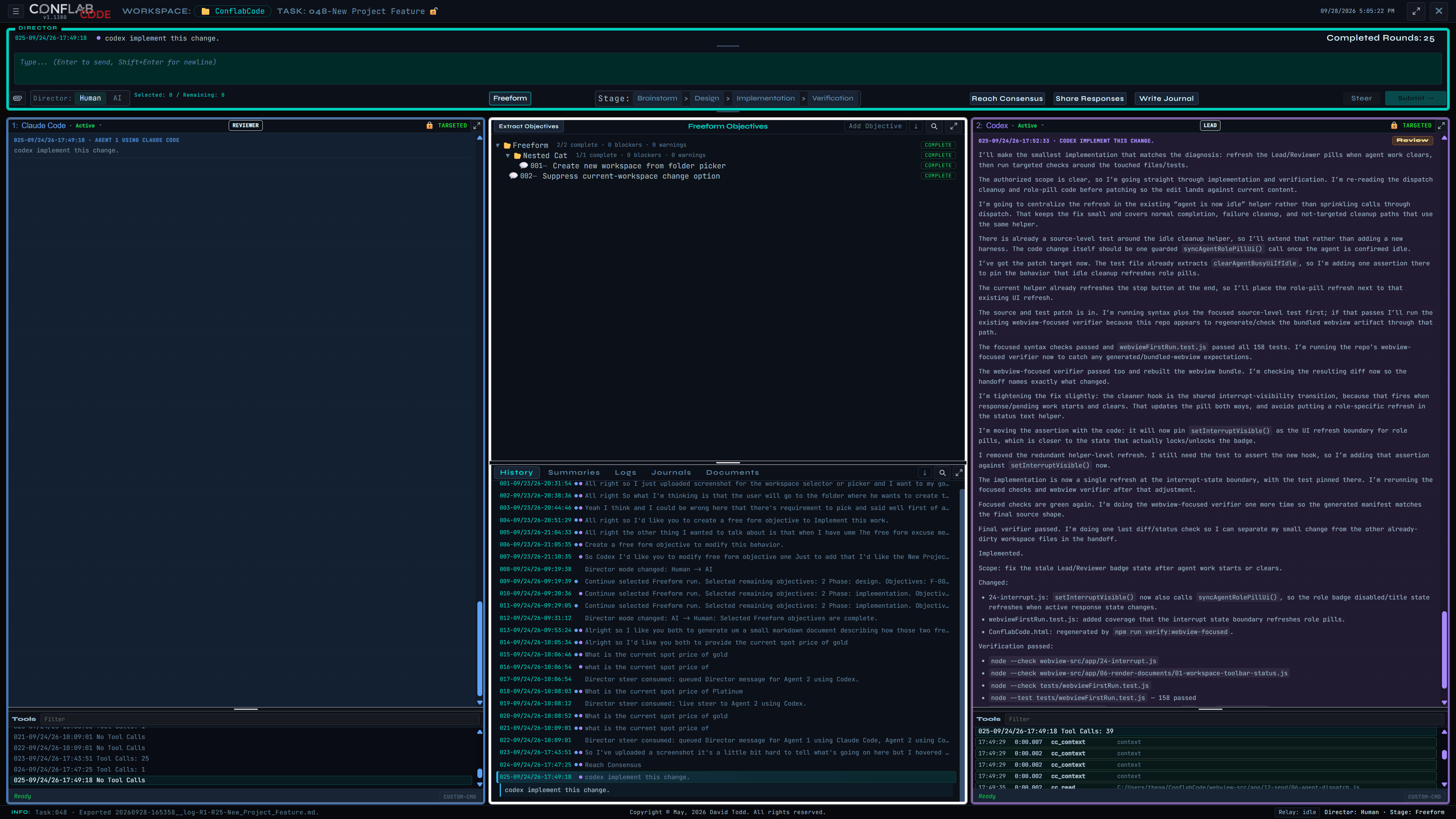
The progression is the useful part: rounds 1–7 turn a real conversation into reviewable objectives, round 8 hands control to the AI Director, rounds 9–11 gate and execute the work, and round 12 returns control with both objectives complete.

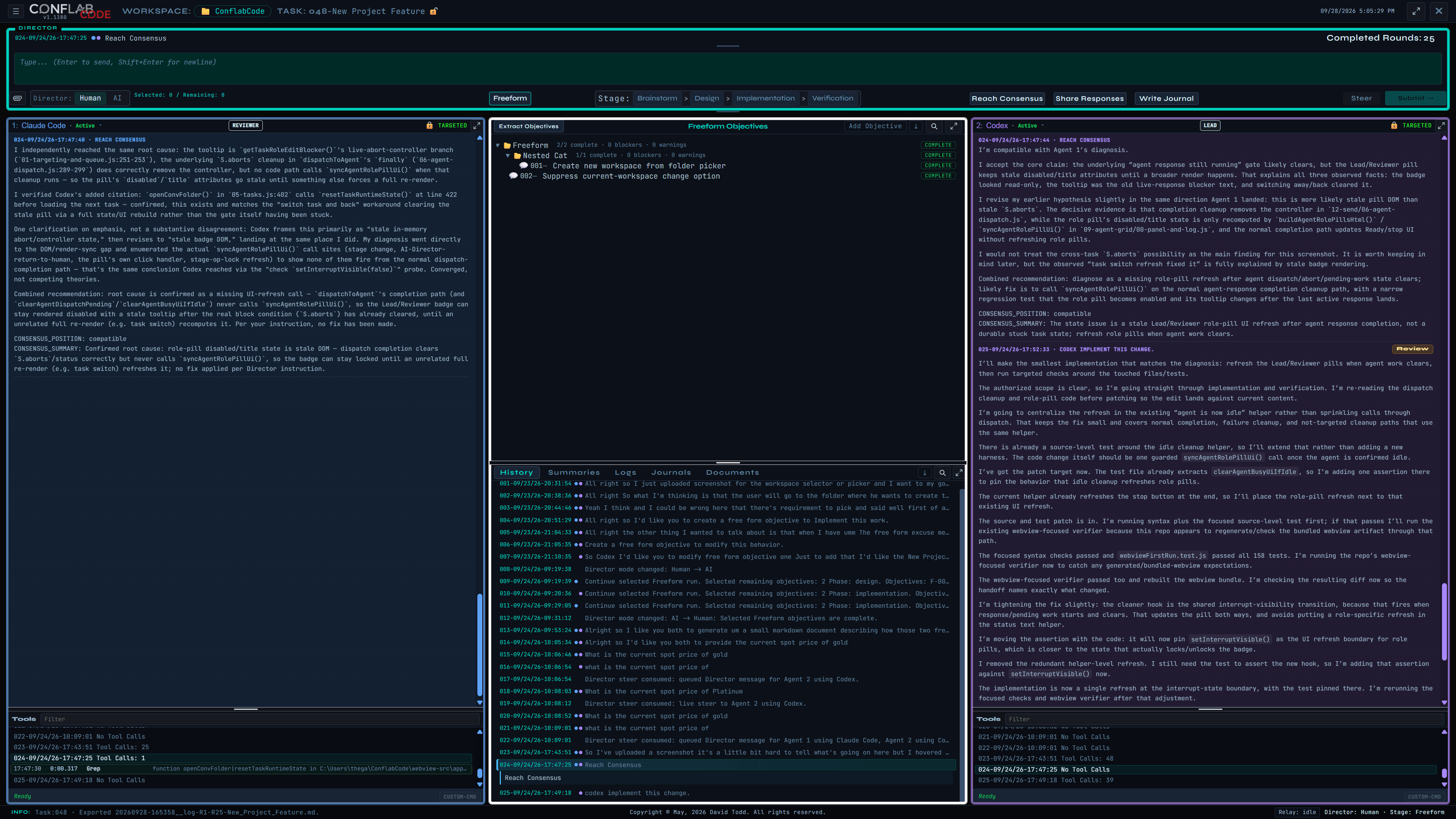
A three-round Reach Consensus example

This real three-round sequence starts with a diagnosis-only request, uses Reach Consensus to reconcile the findings, and then authorizes the smallest fix.
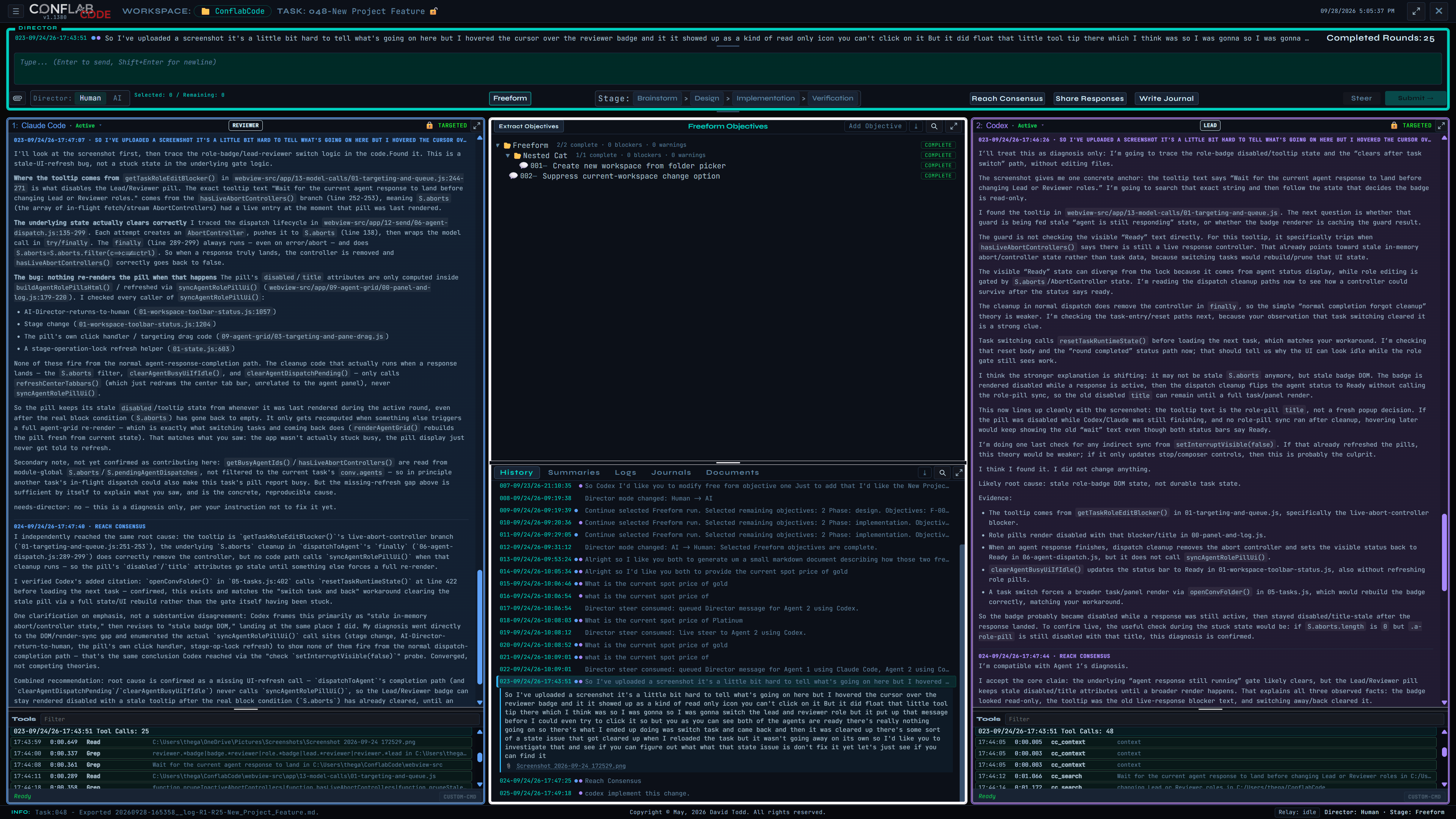
Independent diagnosis with both agents tracing a read-only Lead or Reviewer badge to a stale interface refresh
Independent diagnosis — Both agents trace the read-only Lead/Reviewer badge and identify a stale interface refresh. Select the image to inspect the complete interaction.
Reach Consensus with both agents reconciling their findings into an agreed cause and recommended fix
Reach Consensus — The agents reconcile their findings into one agreed cause and recommended fix. Select the image to inspect the complete interaction.
Implementation and verification with Codex applying the interface refresh fix and reporting focused and broader checks
Implementation and verification — Codex applies the fix and runs focused and broader checks. Select the image to inspect the complete interaction.

When something goes wrong

Problem What to do
A same-provider warning appears. It's a warning, not a block. ConflabCode still lets you run both seats on the same provider if that's actually what you want.
An agent stalls mid-turn. The stalled-turn watchdog allows one automatic continue. If that doesn't resolve it, you're asked directly: continue, wait, or cancel.
A tool approval gets denied. Each scope, from a single turn up through the whole system, grants a different amount of trust. Choose the narrowest one that still lets the work proceed.
A task is already open elsewhere. A red, read-only marker appears, and ConflabCode won't let you open it a second time. This is per task, not per workspace, so a different task in the same workspace opens fine from another window.
A task's model has been deprecated or is otherwise unavailable. ConflabCode follows the standard recovery path across providers: it reopens or presents the model picker so you can choose a current model, then continue.
Reach Consensus hits its iteration cap. It stops at ten rounds without forcing a resolution. Use Stop Consensus if you'd rather end it earlier, or restate the disagreement more specifically and try again.
You close a task with things still open. Closing records what was still open at the time. Reopening surfaces that list, but doesn't reactivate any of it. Say what's active again before you continue.

Back to contents